
Business hours and away messages
Set opening hours for each EngageOne inbox, send an automatic away message outside those hours, and greet customers when they first write in.
On this page
Business hours tell customers when your team is available, and let EngageOne reply automatically when nobody is around.
How it works
Business hours are set per inbox. This means your website chat, WhatsApp and email inboxes can each have different hours and messages.
When business hours are on for an inbox:
- Outside your hours, EngageOne sends the customer your unavailable message when they write in.
- On the website chat widget, visitors see whether you are online, for example "We are online" or "We are away at the moment", with a hint about when you'll be back.
- Inside your hours, nothing changes. Your team replies as usual.
Set business hours for an inbox
You need to be an administrator.
Go to Settings → Inboxes.
Open the inbox you want to set up.
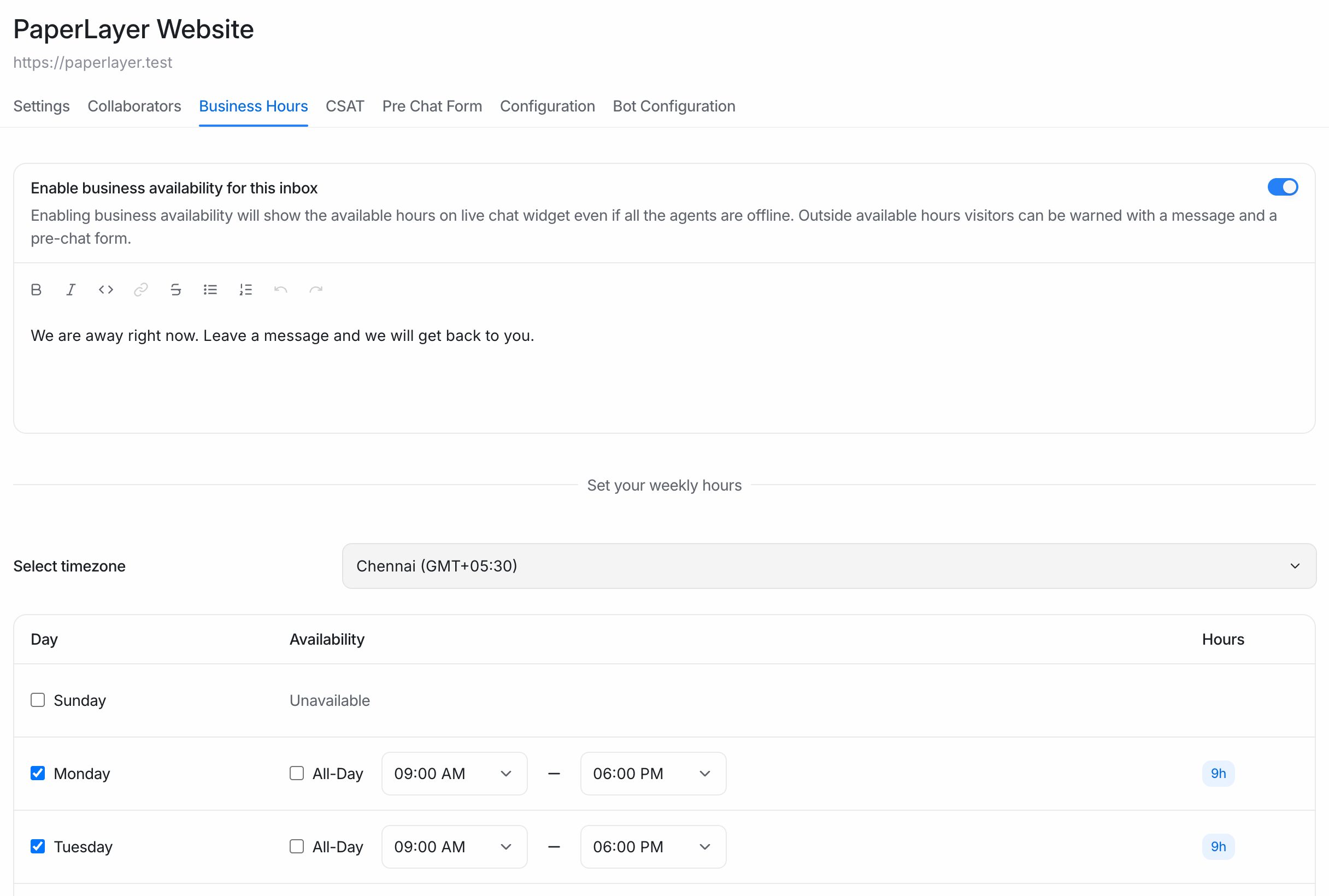
Open the Business Hours tab.
Turn on Enable business availability for this inbox.
In Unavailable message for visitors, write the message customers get outside your hours. For example:
Thanks for getting in touch! Our team is available Monday to Friday, 9 am to 6 pm. We'll reply as soon as we're back.
In Select timezone, choose your team's time zone.
Under Set your weekly hours, set each day:
- Turn the day on (Enable availability for this day) or leave it off for days you are closed. Closed days show as Unavailable.
- Choose the opening and closing time, or tick All-Day to stay available for the whole day.
Click Update business hours settings.
Tip: Set the time zone carefully. Business hours follow the time zone you choose, not the time zone of each agent or customer.
When the away message is sent
EngageOne sends your unavailable message when all of these are true:
- The customer sends a new message outside your business hours.
- No agent has replied in that conversation in the last 5 minutes. This stops the message from interrupting a chat that is still going at closing time.
- The conversation hasn't already received an automatic message today. Customers don't get the same away message again and again.
Away messages are not sent for conversations started by a campaign.
Note: Your team can still reply outside business hours. The away message only sets expectations; it doesn't block anything.
Greet customers when they first write
A greeting is different from an away message. It is sent once, when a customer starts a new conversation, at any time of day.
- Go to Settings → Inboxes and open the inbox.
- On the Settings tab, open Channel Preferences.
- Turn on Enable channel greeting.
- Write your Channel greeting message, for example "Hi! Thanks for your message. Someone from our team will be with you shortly."
- Click Update to save the inbox settings.
Tip: Keep greetings short and use them to set expectations, such as your typical reply time. Avoid asking questions the customer has already answered in their first message.
Show your reply time on the website widget
For website inboxes, you can also tell visitors how fast you usually reply.
- Open your website inbox from Settings → Inboxes.
- On the Settings tab, find Set Reply time.
- Choose In a few minutes, In a few hours or In a day.
- Click Update to save.
Visitors see this in the chat window, for example "Typically replies in a few minutes". See Widget settings for all widget options.
Business hours and other features
- SLA policies can be set to count time only during business hours (on plans that include SLAs), so a chat that arrives at night doesn't count as a late reply.
- The AI Assistant can keep answering common questions while your team is away, and hand the conversation to a person when needed. See Introduction to the AI Assistant.
Common questions
Do I need to set business hours for every inbox? No. Inboxes without business hours are treated as always available and never send an away message.
Can I set holidays? There is no separate holiday calendar. For a one-off closure, update the unavailable message and turn off the affected day, then change it back afterwards.
Why didn't a customer get the away message? Check that business availability is turned on for that inbox, that the time zone is right, and that the unavailable message isn't empty. Also remember the message is skipped if an agent replied in the last 5 minutes or the conversation already got an automatic message today.