
Private notes and mentions
Leave internal notes in EngageOne conversations that customers never see, and @mention teammates or teams to bring them in.
On this page
Private notes let your team talk inside a conversation without the customer seeing it. Use them to share context, ask for help or leave a hand-over message.
Write a private note
- Open a conversation.
- Above the reply box, switch from Reply to Private Note.
- Type your note.
- Click Add Note.
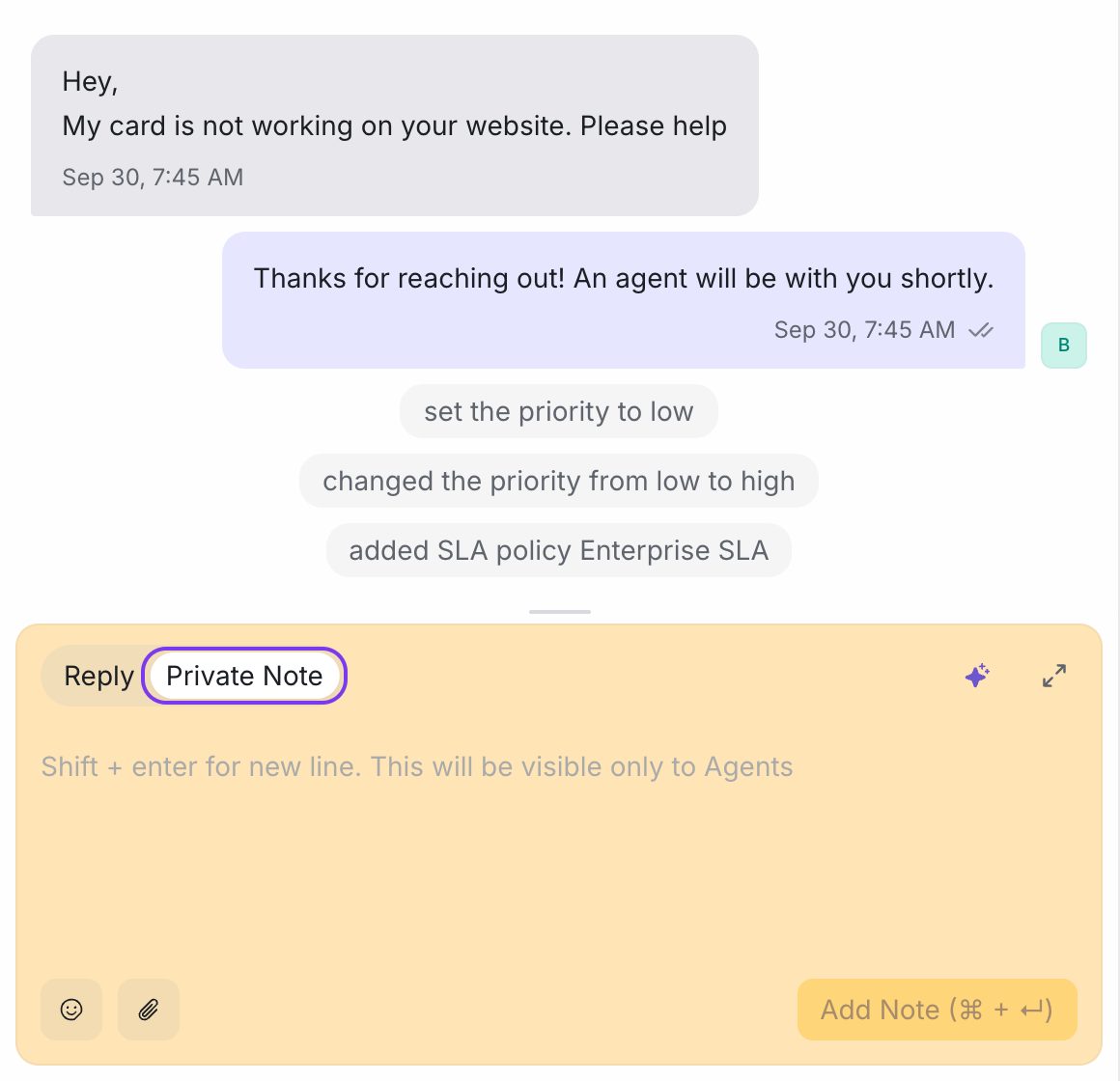
The note appears in the conversation with a different background colour and the text "Private Note: Only visible to you and your team".
Tip: Press Alt + P to switch to Private Note, and Alt + L to switch back to Reply. On a Mac, use Option instead of Alt.
Important: Always check which tab is selected before you send. Text sent from the Reply tab goes to the customer.
Mention a teammate or team
Mentions notify people so they look at the conversation.
- Switch to Private Note.
- Type
@and start typing a name. - Choose an agent or a team from the list.
- Finish your note and click Add Note.
When you mention a team, every member of that team is notified.
What happens after a mention
- The mentioned person gets a notification in EngageOne. Depending on their notification settings, they may also get an email or push notification.
- The conversation appears in their Conversations → Mentions list, so they can find it later.
Mentions only work in private notes. Customers never see them.
Notes on a contact
Private notes belong to one conversation. To keep notes about the person across all their conversations, use contact notes instead:
- Go to Contacts and open the contact.
- Open the Notes tab.
- Type your note and click Save note.
You can also see contact notes in the Contact Notes section of the conversation details panel.
Good uses for private notes
| Situation | Example note |
|---|---|
| Hand-over | "@Ravi customer wants a refund for order 5521, I've checked it's eligible." |
| Asking for help | "@Billing can someone confirm this invoice was paid?" |
| Context for later | "Called the customer, they will send photos tomorrow." |