
Conversation, agent, inbox, team and label reports
Track conversation volume, response and resolution times by agent, inbox, team and label in EngageOne, filter by date and business hours, and export CSV.
On this page
These reports show how much work your team handles and how quickly, broken down by agent, inbox, team or label.
Metrics used in these reports
| Metric | Meaning |
|---|---|
| Conversations | Number of conversations in the period. |
| Messages received | Messages sent by customers. |
| Messages sent | Messages sent by your team. |
| First Response Time | Average time from a new conversation to the first reply from your team. |
| Resolution Time | Average time from the start of a conversation to when it is resolved. |
| Resolution Count | Number of conversations resolved. |
| Customer waiting time | Average time customers waited for a reply after each of their messages. |
Tip: Hover over a time metric to see how many conversations it was calculated from. A small number can make an average look unusual.
Conversations report
- Go to Reports → Conversations.
- Choose a Duration, such as Last 7 days, Last 30 days, This month or Custom date range.
- Choose how to Group By: Day, Week, Month or Year. The options depend on the length of the period.
- Turn on Business Hours if you want times calculated only during business hours.
- Click a metric card to see its chart.
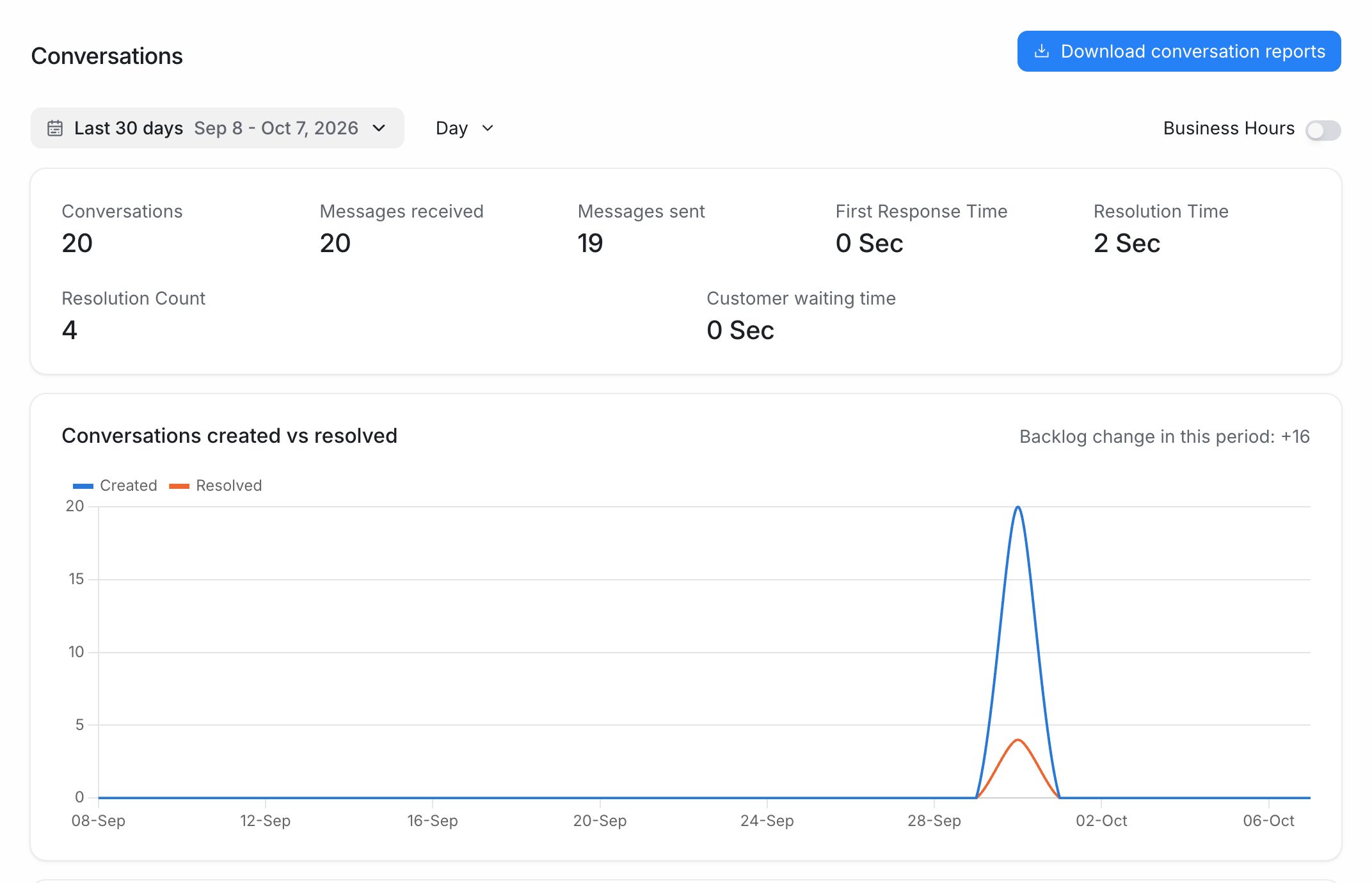
The Conversations created vs resolved chart shows whether your backlog grew or shrank during the period.
See the conversations behind a chart
Administrators can click a bar in a chart to open the conversations or messages behind it. Use Previous bar and Next bar to move along the chart, and Load more to see more records.
Agents, inbox, team and label reports
These four reports work the same way.
- Go to Reports and choose Agents, Inbox, Team or Labels.
- Choose a date range at the top of the page.
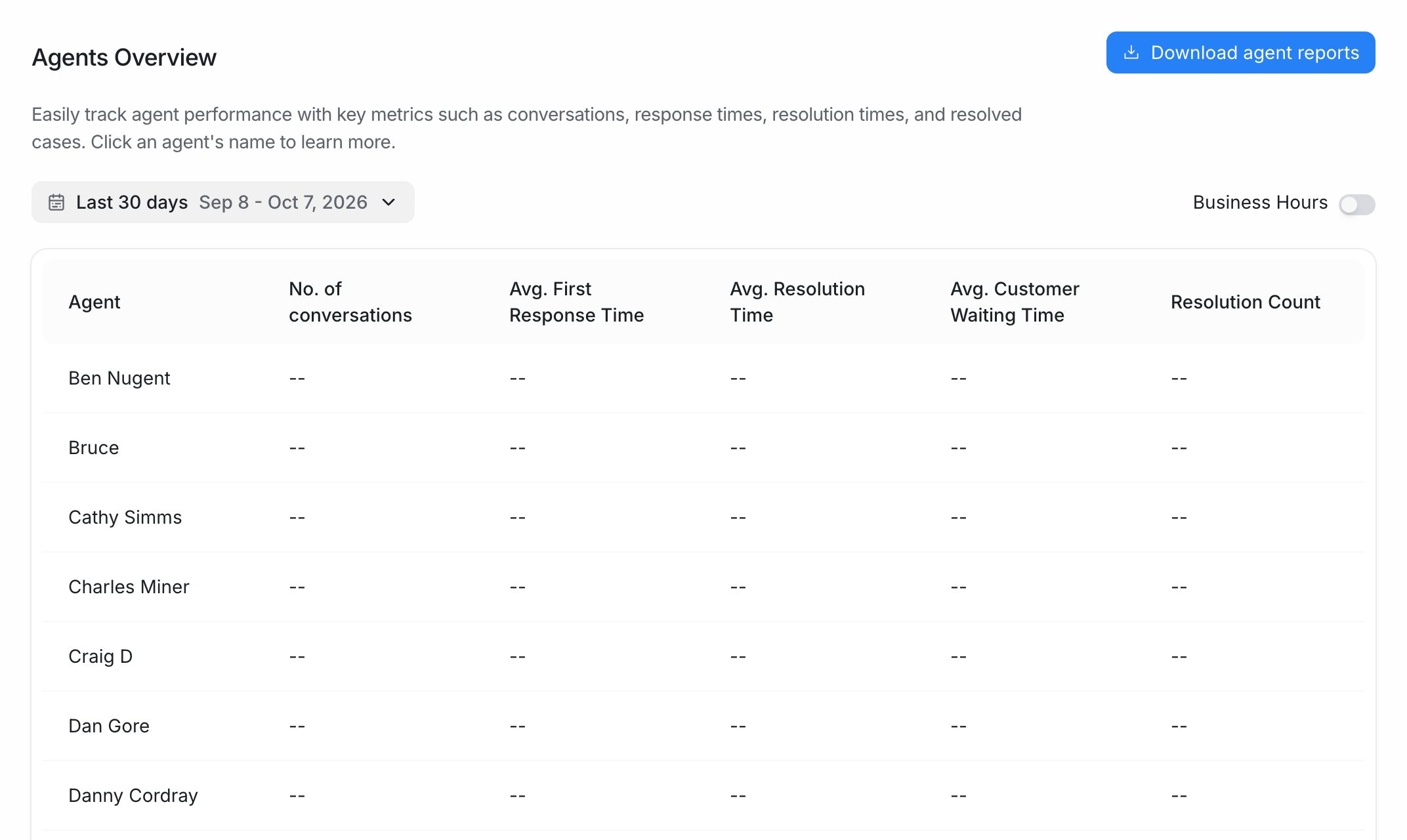
- Read the summary table. Each row shows:
| Column | Meaning |
|---|---|
| No. of conversations | Conversations for that agent, inbox, team or label. |
| Avg. First Response Time | Average time to the first reply. |
| Avg. Resolution Time | Average time to resolve. |
| Avg. Customer Waiting Time | Average time customers waited for replies. |
| Resolution Count | Conversations resolved. |
- Click a name in the table to open its detailed report, with the same charts as the Conversations report.
- In the detailed report, use the filter at the top to switch to another agent, inbox, team or label, and set Duration, Group By and Business Hours.
Note: Agent reports count conversations assigned to that agent. Label reports count conversations that have that label. Use labels consistently so label reports stay useful.
The Business Hours toggle
When Business Hours is on, EngageOne only counts time inside each inbox's business hours when it works out response and resolution times. For example, a message received at 6 pm on Friday and answered at 9 am on Monday counts as a short wait, not a whole weekend.
Set business hours for each inbox first. See Business hours and away messages.
Download reports as CSV
Each report has a download button at the top right of the page:
| Report | Button |
|---|---|
| Conversations | Download conversation reports |
| Agents | Download agent reports |
| Inbox | Download inbox reports |
| Team | Download team reports |
| Labels | Download label reports |
The file downloads in CSV format and uses the date range you selected. Open it in Excel, Google Sheets or any spreadsheet tool.
Tips for reading reports
- Compare the same period length, for example this week with last week.
- Look at Customer waiting time as well as First Response Time. A fast first reply followed by long gaps still frustrates customers.
- Check the Overview heatmaps to see when volume peaks, then plan shifts around those hours.