
Custom domain and languages
Serve your EngageOne help center on your own domain with a CNAME record, and publish it in several languages with locales for portals, categories and articles.
You can show your help center on your own web address, such as help.example.com, and publish it in more than one language.
Use a custom domain
By default, your help center uses your EngageOne address, for example https://<your-engageone-domain>/hc/acme-help/en. A custom domain lets customers use an address on your own website instead.
Step 1: Add the domain in EngageOne
- Go to Help Center → Settings.
- Open the Domain tab.
- Click Add custom domain.
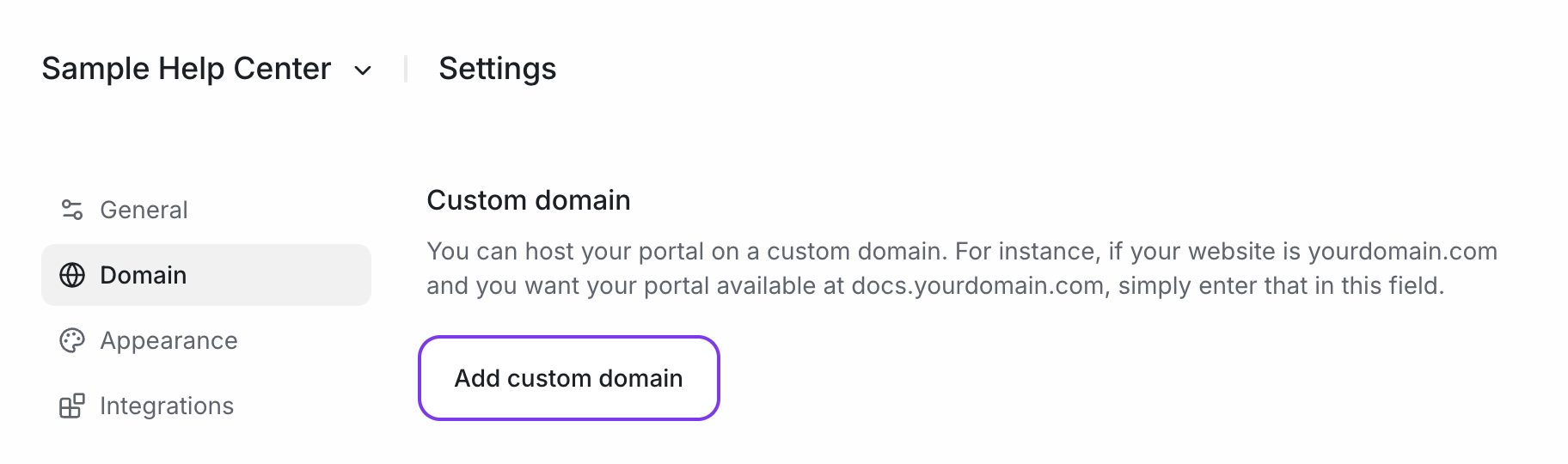
- Enter the full subdomain you want to use, for example
help.example.com. Don't includehttps://or a path. - Click Add domain.
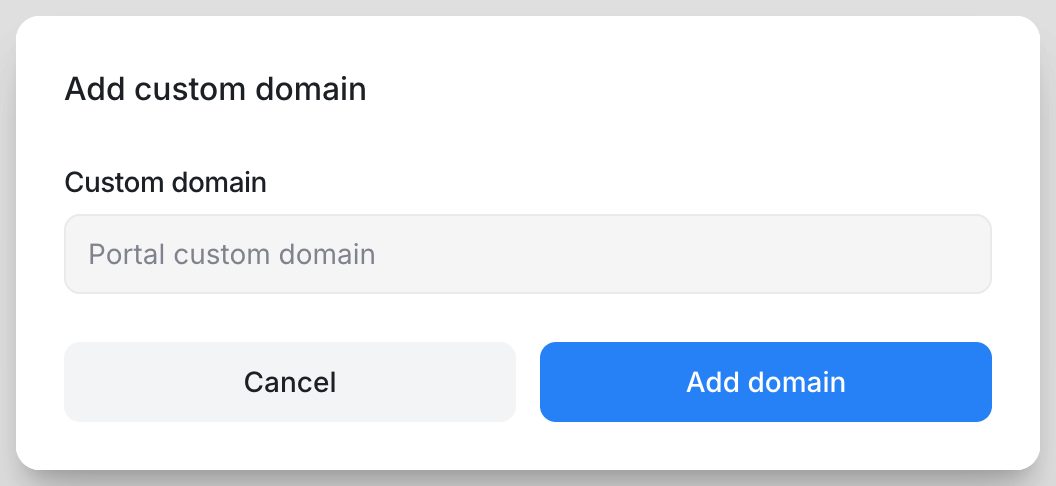
EngageOne then shows the DNS configuration you need.
Step 2: Add a CNAME record
- Copy the CNAME record shown in the DNS configuration window. It looks like this:
help.example.com CNAME <your-engageone-help-center-host>
- Sign in to the company that manages your domain's DNS, such as your domain registrar or hosting provider.
- Create a new CNAME record:
| Setting | Value |
|---|---|
| Type | CNAME |
| Name / Host | Your subdomain, for example help |
| Value / Target | The host shown in EngageOne |
- Save the record.
If someone else manages your DNS, enter their email under Send instructions in the same window and click Send. EngageOne emails them the steps.
DNS changes can take from a few minutes to several hours to take effect.
Step 3: Make sure HTTPS works
Your custom domain needs a valid security certificate so browsers can open it over HTTPS.
- The CNAME record only sends visitors to EngageOne. It doesn't create a certificate.
- The person who manages your EngageOne installation (your server administrator, or DRIANSH if DRIANSH manages the installation for you) must make sure the server accepts the new domain and has a certificate for it.
- Contact them after you add the record, and test the address in your browser before you share it with customers.
On some installations the Domain tab shows a status such as Awaiting verification or Live. If no status appears, check the address in your browser instead.
Important: Use a subdomain such as
help.example.comorsupport.example.com. Don't use your main website address, because a CNAME record would replace your website.
To change or remove the domain later, open the Domain tab and click Edit.
Publish your help center in several languages
Each language is called a locale. A portal can have several locales, and every locale has its own categories and articles.
Add a locale to a portal
- Go to Help Center → Locales.
- Click New locale.
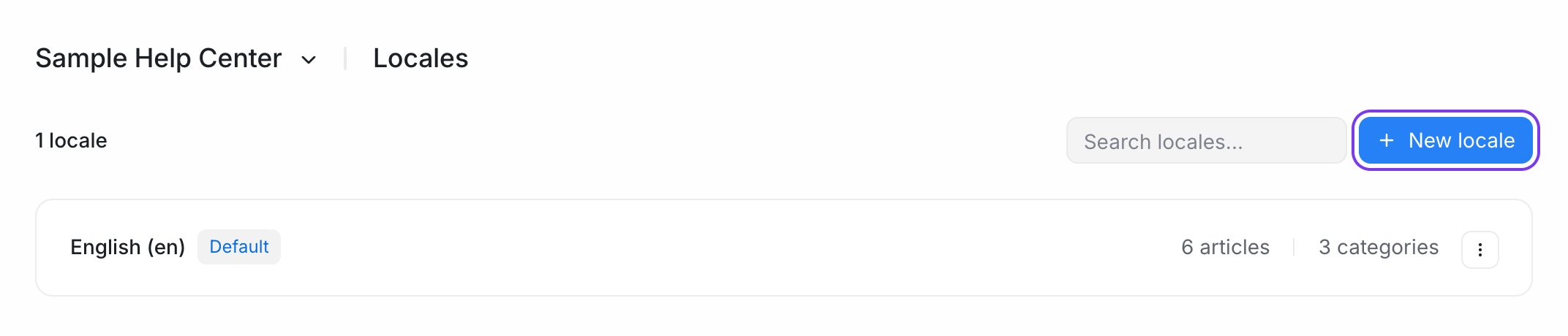
- Choose the language.
- Under Status, choose Published to show it to customers now, or Draft to prepare it first.
- Save.
Manage locales
Open a locale's menu on the Locales page to:
| Option | What it does |
|---|---|
| Make default | Sets the language customers see first. |
| Publish locale / Move to draft | Shows or hides this language on your help center. |
| Localize content | Sets the portal Name, Page title and Header text for this language. Empty fields use the default locale's text. |
| Select recommended content | Picks the categories and articles featured on this language's home page, in the order you choose. |
| Delete | Removes the locale. |
Each locale card shows how many categories and articles it has, so you can see which languages need more work.
Create categories in a locale
Categories belong to one locale.
- Go to Help Center → Categories.
- Choose the locale at the top of the page.
- Click New category and fill in the Name, Slug and Description in that language.
- Click Create.
Write articles in a locale
- Go to Help Center → Articles.
- Choose the locale at the top of the page.
- Click New article and write the article in that language.
- Choose a category from the same locale and click Publish.
Translate existing articles
If AI features are turned on for your workspace, EngageOne can translate articles for you:
- Go to Help Center → Articles.
- Select one or more articles.
- Click Translate.
- Choose the Target language and, optionally, a Target category.
- Click Translate.
If a translation already exists in that language, EngageOne warns you. Click Overwrite and translate to replace it.
Tip: Always ask a fluent speaker to review translated articles before you publish them.