
Copilot for agents
Use EngageOne AI in conversations: ask Copilot, get reply suggestions, improve drafts, change tone, fix grammar, summarise chats and get label suggestions.
EngageOne gives agents AI help inside each conversation, so you can reply faster and stay consistent.
Requirements
- AI features must be turned on for your workspace and an AI provider must be connected. See Introduction to the EngageOne AI Assistant.
- The Copilot panel also needs at least one assistant. See Create an assistant.
If you don't see the AI options described below, ask your administrator.
AI actions in the reply box
- Open a conversation.
- In the reply box, click the sparkle icon above the text area.
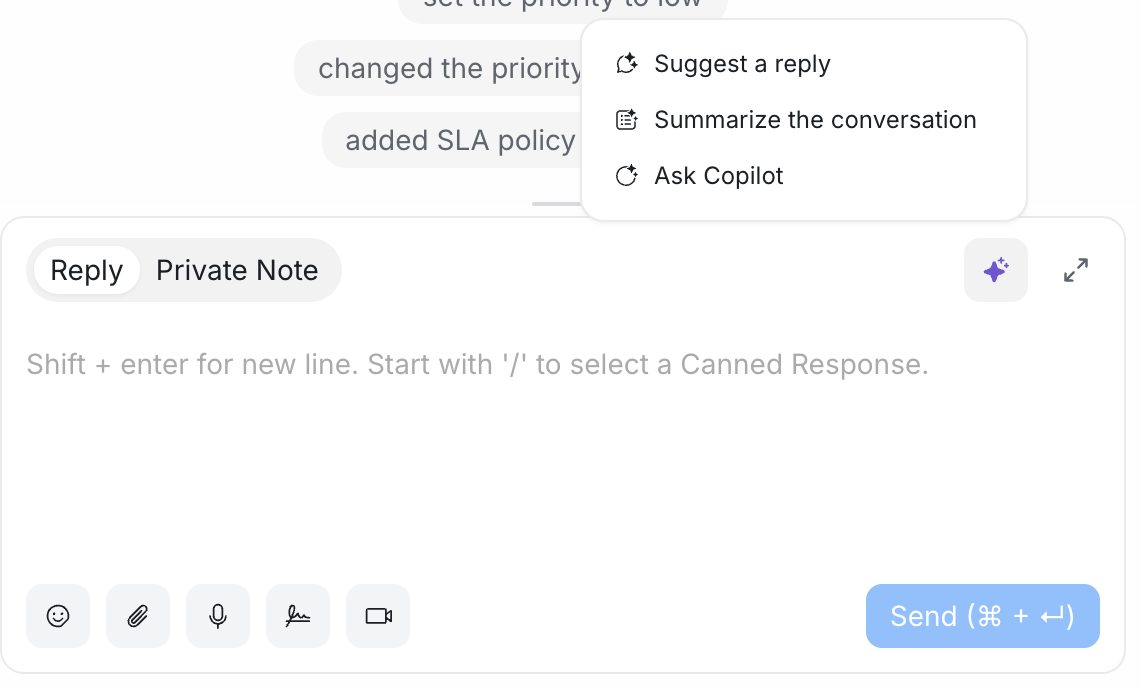
- Choose an action:
| Action | When it appears | What it does |
|---|---|---|
| Suggest a reply | When you're writing a reply (not a private note). | Drafts a reply based on the conversation. |
| Improve reply | When your draft has text. | Rewrites your draft so it reads more clearly. |
| Change tone | When your draft has text. | Rewrites your draft as Professional, Casual, Straightforward, Confident or Friendly. |
| Fix grammar & spelling | When your draft has text. | Corrects mistakes without changing your meaning. |
| Summarize the conversation | In replies and private notes. | Creates a short summary of the conversation. |
| Ask Copilot | Always. | Opens the Copilot panel. |
- Review the result. Edit it if needed before you send.
Important: AI can make mistakes. Always read a suggested reply before you send it to a customer.
Ask Copilot
Copilot is a chat panel next to the conversation. You can ask it questions in plain language.
- Open a conversation.
- Click the Copilot icon at the top right of the conversation to open the panel.
- Pick one of the suggested prompts, or type your own question and press Enter.
- Click Use this to copy a suggested answer into your reply box.
- Click the Reset icon to start a new Copilot chat.
The suggested prompts include:
- Summarize this conversation
- Suggest an answer
- Rate this conversation
- High priority conversations
- List contacts
You can also ask follow-up questions, for example "Make that shorter" or "What did this customer ask about last week?". If you have more than one assistant, use Select Assistant to choose which assistant's knowledge Copilot uses.
Tip: Click Show steps to see how Copilot found its answer.
Label suggestions
EngageOne can suggest labels for a conversation that has no labels yet.
To turn label suggestions on:
- Go to Settings → Integrations → OpenAI.
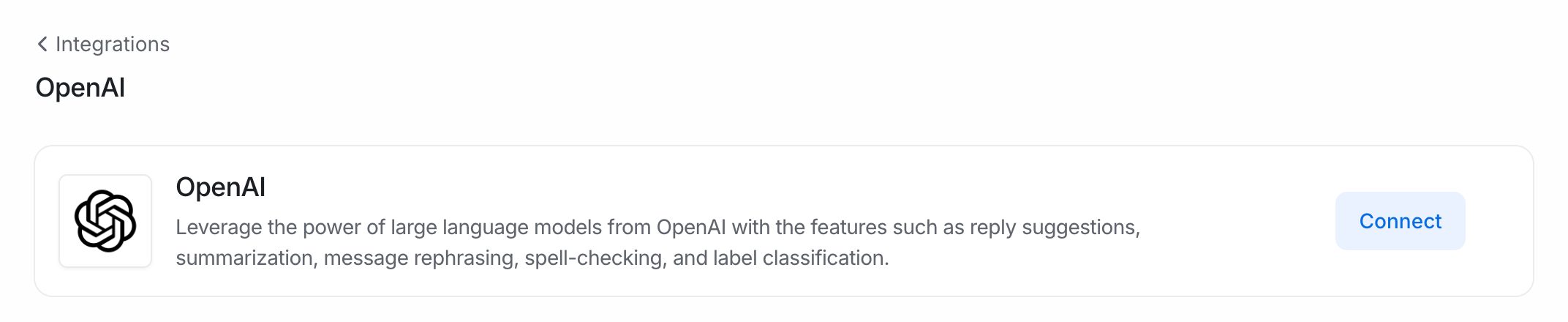
- Enter your API Key if it isn't already set.
- Tick Show label suggestions and save.
When suggestions are available, they appear inside the conversation:
- Click a suggested label to select it, then click Add selected labels.
- Or click Add all labels.
- Click Dismiss to hide the suggestions for that conversation.
See Labels to create the labels your team uses.