
Pre-chat forms
Ask website visitors for their name, email, phone or custom details before they start a chat in EngageOne.
On this page
A pre-chat form asks visitors a few questions before their first message. Your agents then know who they are talking to and why.
Turn on the pre-chat form
- Go to Settings → Inboxes and select your website inbox.
- Click the Pre Chat Form tab.
- Set Enable pre chat form to Yes.
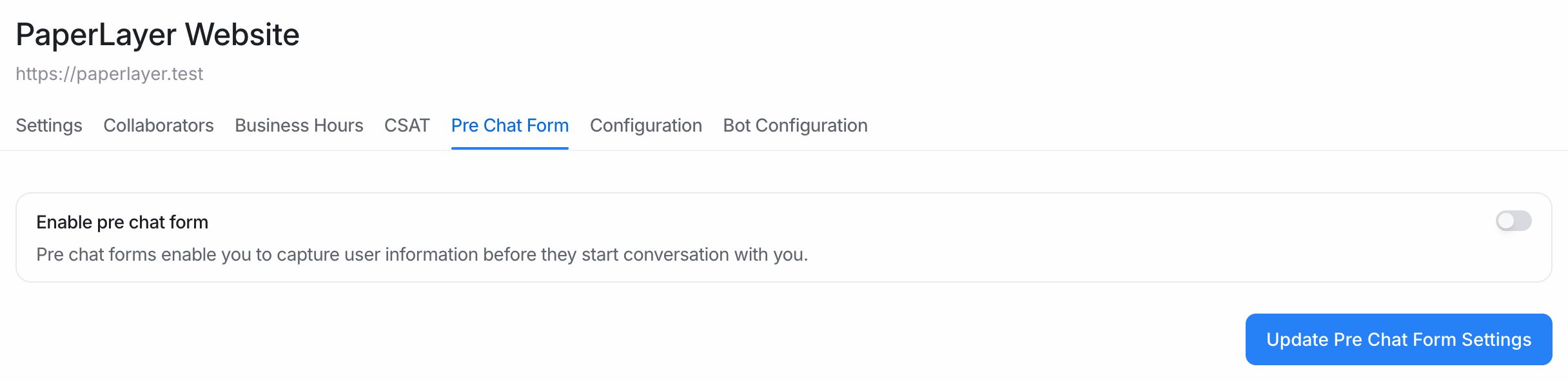
- In Pre chat message, write a short line that visitors see above the form, for example "Tell us a little about yourself and we'll be right with you."
- Choose your fields (see below).
- Click Update Pre Chat Form Settings.
Choose the fields
The Pre chat form fields table lists every field you can show. Each row has these columns:
| Column | What it means |
|---|---|
| Fields | Tick the box to show this field on the form. |
| Label | The question or name the visitor sees. You can edit it. |
| Placeholder | Hint text inside the empty field. You can edit it. |
| Key | The internal name of the field. You cannot change it here. |
| Type | The kind of input, such as text, email, number or list. |
| Required | Tick to make the visitor fill this field before they can start. |
Standard fields
Three standard fields are always in the list:
| Field | Saved to |
|---|---|
| Full Name | The contact's name |
| Email Id | The contact's email address |
| Phone Number | The contact's phone number |
Custom fields
Any custom attribute you create also appears in the list, switched off by default. Turn it on to ask for things like an order number, a product, or a preferred language.
- Contact attributes are saved on the contact, so you see them in every future conversation.
- Conversation attributes are saved on this conversation only.
To add more fields, create them first under Settings → Custom Attributes. See Custom attributes.
Tip: A List attribute shows as a dropdown, and a Checkbox attribute shows as a tick box. If the attribute has regex validation, the form checks the visitor's answer against it.
What visitors see
- When a visitor opens the widget and starts a new conversation, the form appears first.
- The visitor fills in the fields and types their first message.
- The contact and conversation are created with the answers already filled in.
If you already know some details about the visitor, the form skips those fields. For example, if you pass the user's email with the widget SDK, the email field is not shown again. See Identify logged-in users.
Tips for a good form
- Ask only what your team needs to help. Every extra field means fewer visitors finish the form.
- Make the email field required if you want to follow up by email when the visitor leaves.
- Use clear labels such as "Your order number" instead of the attribute key.
Note: The pre-chat form is available only for website inboxes.