
Roles and permissions
Learn what administrators and agents can do in EngageOne, and how to create custom roles that give people exactly the access they need.
On this page
Every person in your EngageOne account has a role that controls what they can see and change.
The two built-in roles
- Administrator – full access to the account, including every inbox, report and setting.
- Agent – handles customer conversations in the inboxes they belong to, with limited access to settings.
You choose the role when you invite someone, and you can change it later.
What each role can do
| Task | Administrator | Agent |
|---|---|---|
| See conversations | All inboxes | Only inboxes they are a member of |
| Reply, add private notes, resolve and snooze | Yes | Yes, in their inboxes |
| Assign conversations, add labels and set priority | Yes | Yes, in their inboxes |
| View and edit contacts | Yes | Yes |
| Import, export or delete contacts | Yes | No |
| Use canned responses | Yes | Yes |
| Create canned responses | Yes | Yes |
| Create macros | Shared or personal macros | Personal macros only |
| See reports | Yes | No |
| Run campaigns | Yes | No |
| Change AI Assistant settings | Yes | No (can view and test) |
| Manage Help Center portals and articles | Yes | No |
| Connect channels and change inbox settings | Yes | No |
| Invite, edit and remove team members | Yes | No |
| Create teams, labels, custom attributes and automations | Yes | No |
| Change account settings | Yes | No |
Tip: Give the administrator role only to people who need to change settings. Most of your team should be agents.
Change someone's role
- Go to Settings → Agents.
- Click Edit next to the person.
- Choose a new Role.
- Click Edit Agent.
The change takes effect straight away. The person may need to reload the page to see the new menus.
Important: Keep at least two administrators in your account, so you never lose access to settings if one person leaves.
Custom roles
Custom roles sit between agent and administrator. Use them when someone needs one or two extra abilities, for example a team lead who should see reports but not change settings.
Note: Custom roles are available on plans that include them. If Settings → Custom Roles shows an upgrade message, contact Driansh.
Available permissions
| Permission | What it allows |
|---|---|
| Manage all conversations | Work on every conversation in the person's inboxes, whoever it is assigned to. |
| Manage unassigned conversations and those assigned to them | Work on conversations nobody owns yet, plus their own. Good for people who pick up new chats. |
| Manage participating conversations and those assigned to them | Work only on conversations they are assigned to or taking part in. Good for specialists who are brought in when needed. |
| Manage contacts | View and edit contacts. |
| Manage reports | Open the Reports section. |
| Manage knowledge base | Manage Help Center portals and articles. |
Create a custom role
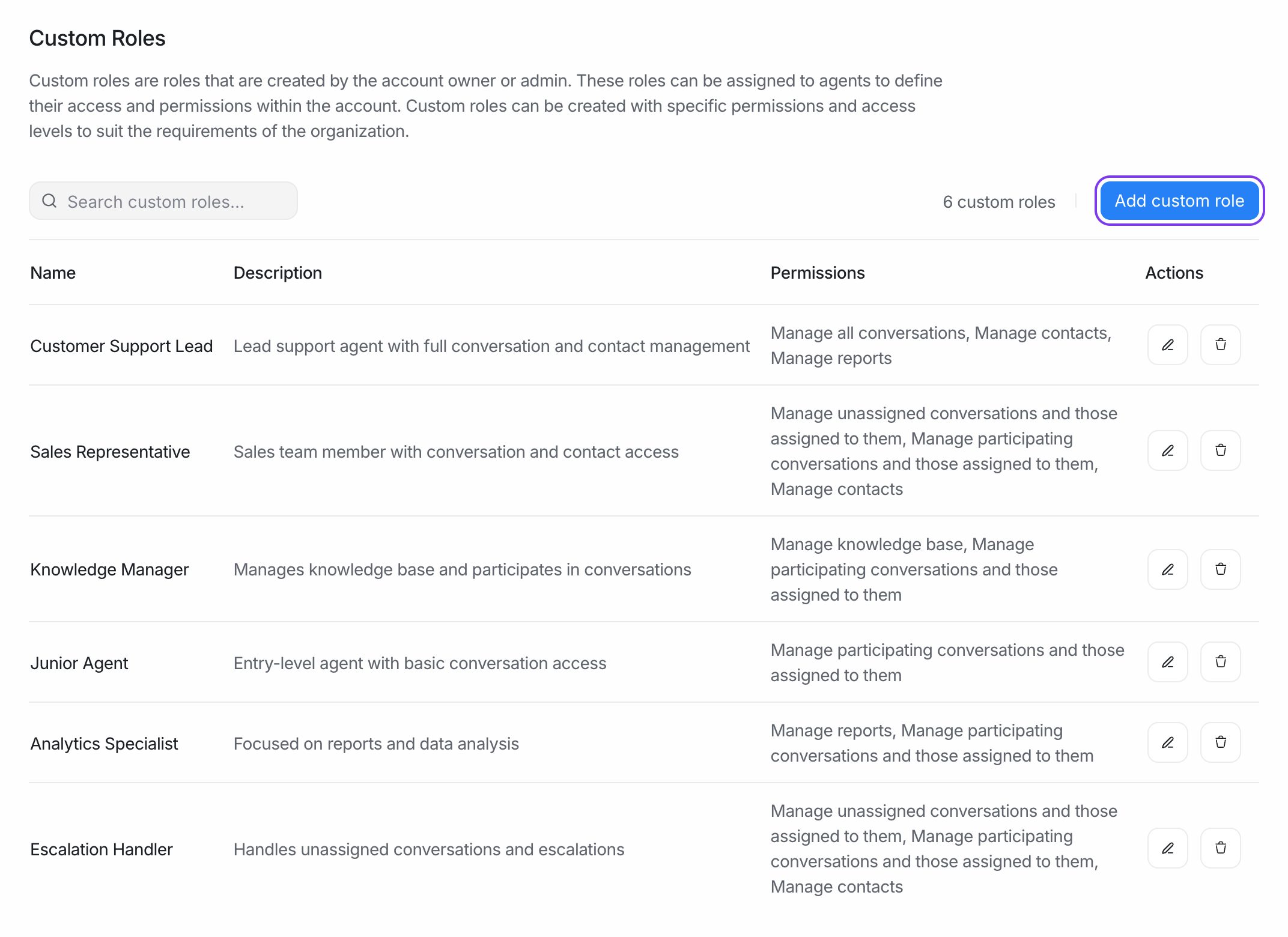
- Go to Settings → Custom Roles.
- Click Add custom role.
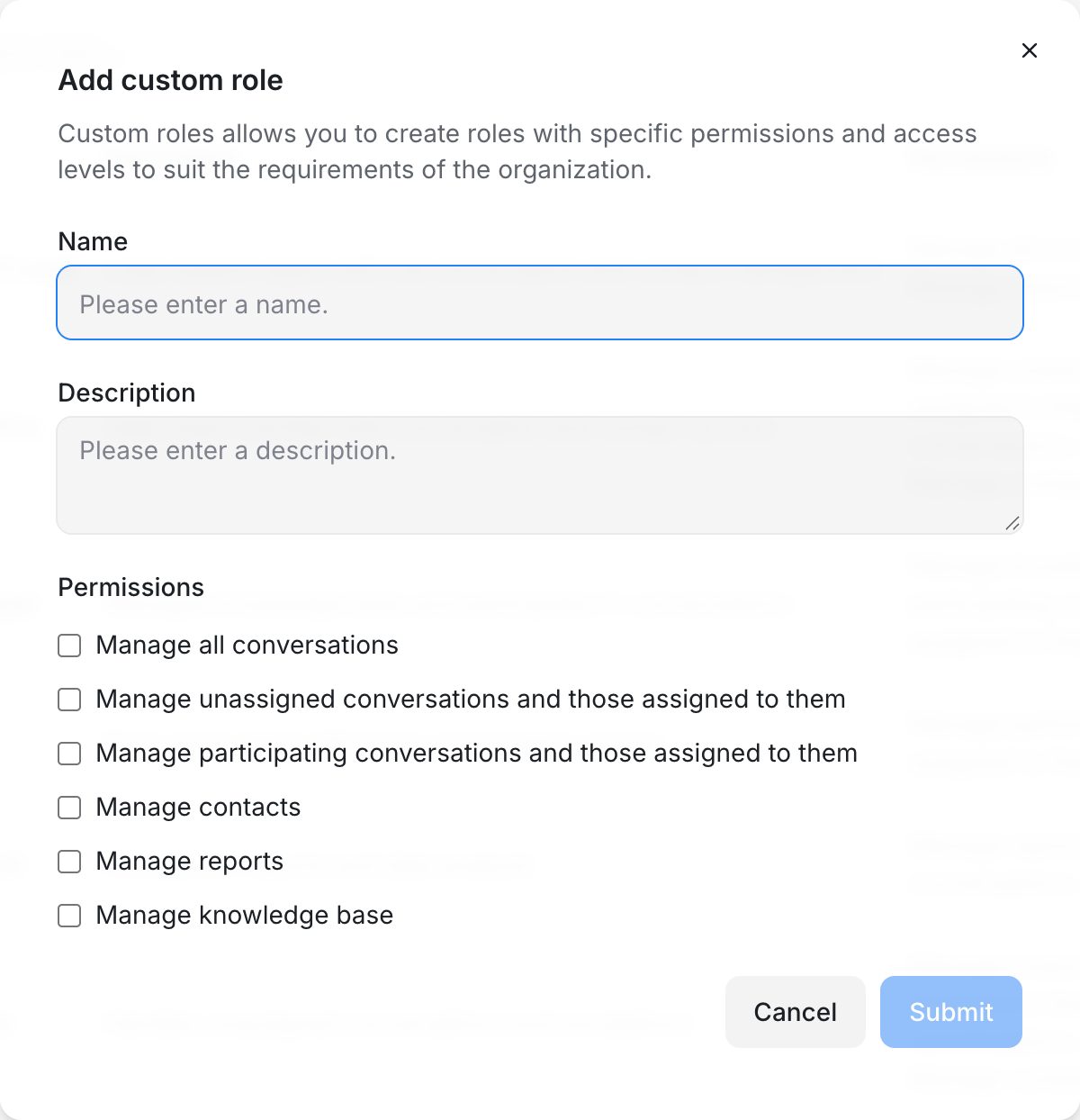
- Fill in:
- Name – for example "Team lead" or "Content editor".
- Description – who this role is for.
- Permissions – tick the permissions the role should have.
- Click Submit.
Give someone a custom role
- Go to Settings → Agents.
- Click Add Agent for a new person, or Edit for an existing one.
- In Role, choose the custom role. Custom roles appear below Administrator and Agent.
- Save.
To change a custom role, click Edit next to it in Settings → Custom Roles. Everyone with that role gets the new permissions.
Note: People with a custom role still only see conversations in the inboxes they are members of. Add them to the right inboxes on each inbox's Collaborators tab.
Example roles
| Role | Permissions to tick |
|---|---|
| Team lead | Manage all conversations, Manage contacts, Manage reports |
| First-line agent | Manage unassigned conversations and those assigned to them, Manage contacts |
| Specialist | Manage participating conversations and those assigned to them |
| Content editor | Manage knowledge base |