
Set up a help center
Create an EngageOne help center portal, organise categories, write and publish articles, and show your help articles inside the website chat widget.
On this page
A help center is a public website of help articles, so customers can find answers on their own before they contact you.
How a help center is organised
| Item | What it is |
|---|---|
| Portal | Your help center site. You can have more than one, for example one per brand or product. |
| Locale | A language version of a portal, such as English or Spanish. |
| Category | A group of related articles, such as "Billing" or "Getting started". |
| Article | A single help page. |
Step 1: Create a portal
- In the left sidebar, open Help Center.
- If you have no portals yet, click Create Portal. Otherwise, open the portal switcher and click New portal.
- Enter a Name, for example "Acme Help".
- Check the Slug. This is the short name used in your help center's web address, for example
acme-help. - Click Create.
Your help center is available at an address like this:
https://<your-engageone-domain>/hc/acme-help/en
You can change the name and slug later in the portal settings.
Step 2: Brand your portal
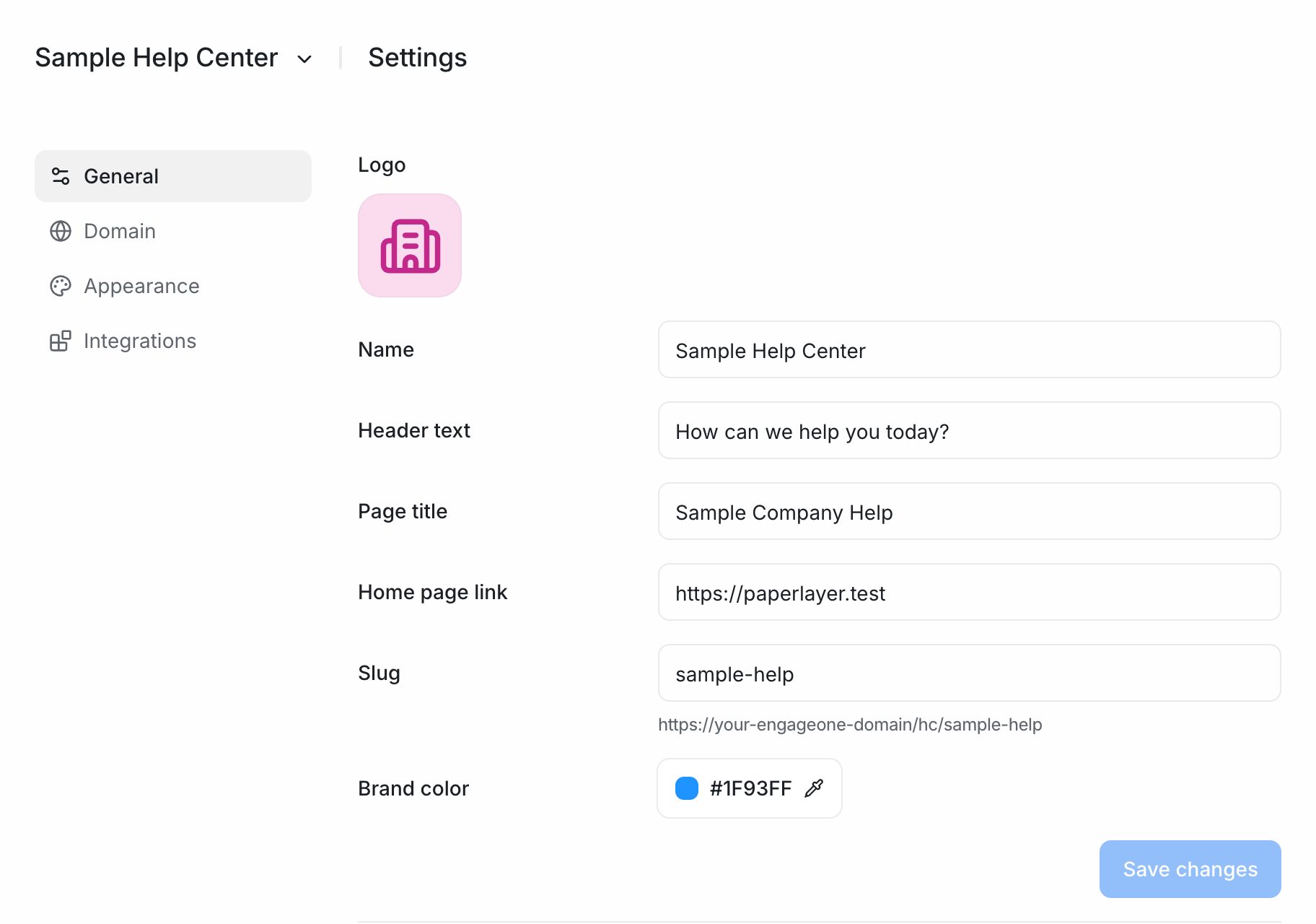
- Go to Help Center → Settings.
- On the General tab, set:
| Field | What it does |
|---|---|
| Logo | Shown at the top of your help center. |
| Name | The portal name. |
| Header text | The welcome line on the home page, for example "How can we help?". |
| Page title | The title shown in the browser tab and search results. |
| Home page link | A link back to your main website. |
| Slug | The portal part of the web address. |
| Brand color | The main color used for links and buttons. |
- Click Save changes.
- On the Appearance tab, choose a layout:
- Classic – a home page with search and featured topics.
- Documentation – a sidebar layout that keeps every guide one click away. You can also add Social links that appear in the footer.
- Click Save changes.
Step 3: Create categories
- Go to Help Center → Categories.
- Click New category.
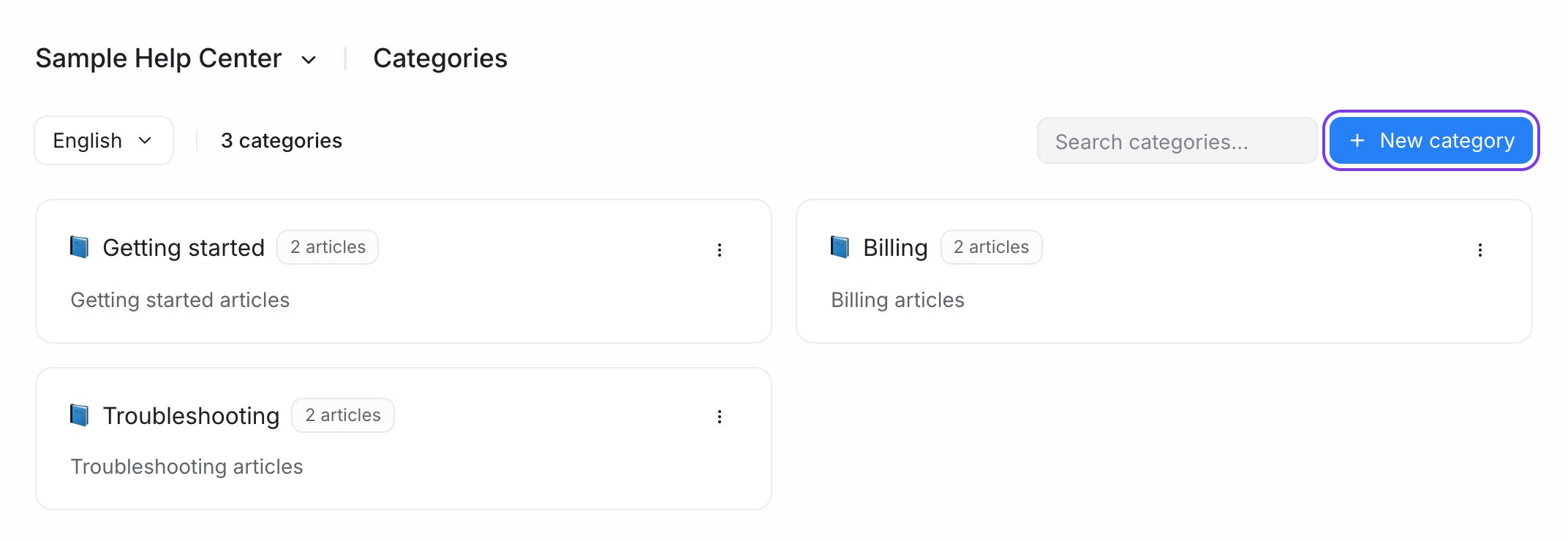
- Enter a Name, a Slug and a short Description.
- Click Create.
Categories belong to one locale. If your help center has more than one language, choose the locale at the top of the page before you create categories. See Custom domain and languages.
Tip: Start with five to eight categories that match the questions customers ask most. You can add more later.
Step 4: Write an article
- Go to Help Center → Articles.
- Click New article.
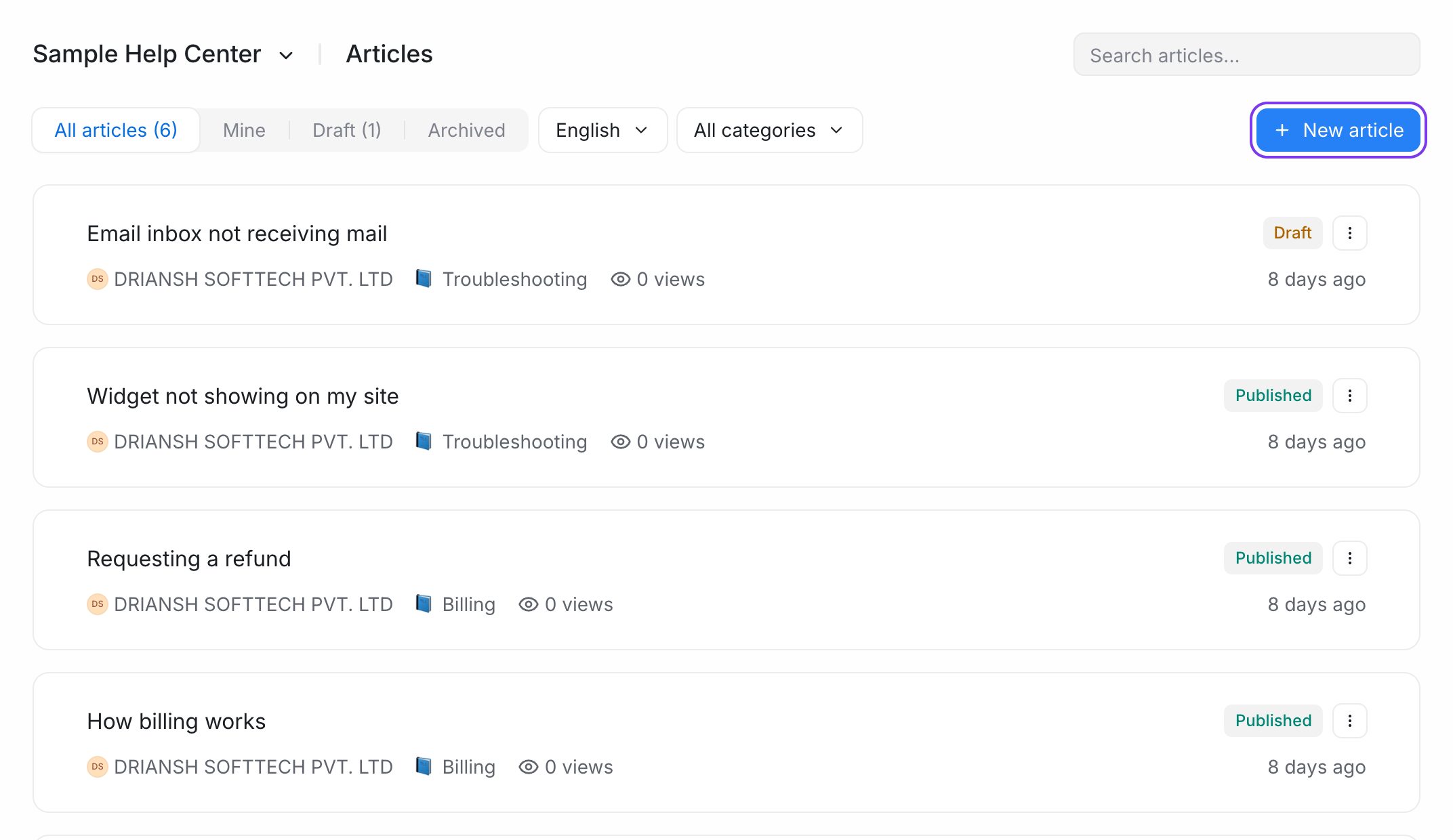
- Type the article title at the top.
- Write the content below. Type
/to see formatting options, such as headings, lists, images and code blocks. - Choose a category for the article. Articles without one are listed as Uncategorized.
- Optionally, open More properties to add a Meta title, Meta description and Meta tags for search engines.
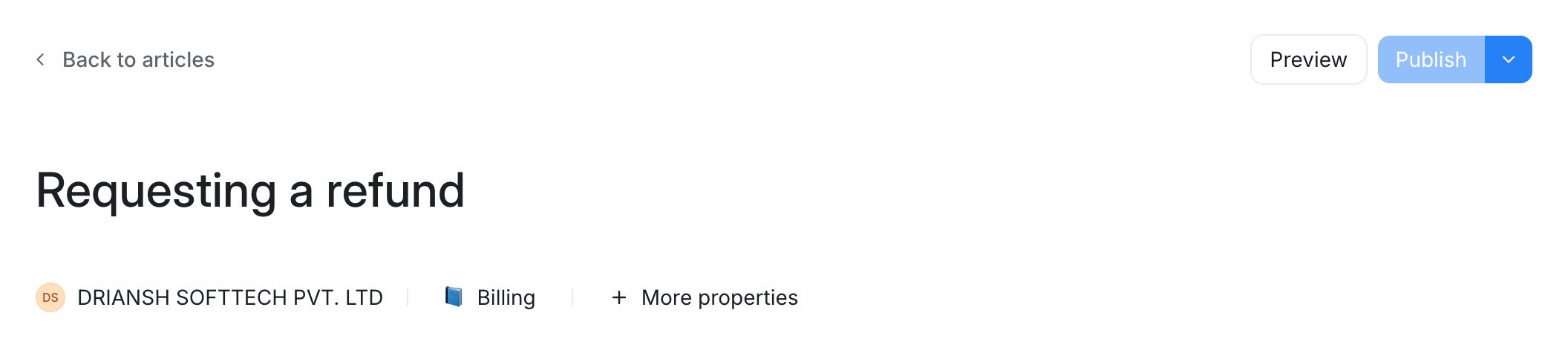
EngageOne saves your work automatically. New articles start as Draft, so customers can't see them yet.
Step 5: Publish
- Open the article.
- Click Preview to check how it looks.
- Click Publish.
Articles have three statuses:
| Status | Who can see it |
|---|---|
| Draft | Only your team. |
| Published | Everyone who visits your help center. |
| Archived | Only your team. Use this for articles that are no longer needed. |
If you edit a published article, your changes are saved as Unpublished edits. Customers keep seeing the live version until you click Publish changes. Click Discard changes to go back to the live version.
To change several articles at once, select them on the Articles page and choose Publish, Draft, Archive, Category or Delete.
Step 6: Show your help center in the chat widget
Link a portal to your website inbox so customers can search and read articles inside the chat widget.
- Go to Settings → Inboxes.
- Open your website inbox and go to its Settings tab.
- In Help Center, choose your portal.
- Save your changes.
The widget now shows articles from your portal on its home screen. Customers can read an article and then start a chat if they still need help.
You can also do the opposite and add your live chat widget to the help center:
- Go to Help Center → Settings → Integrations.
- Under the live chat option, choose your website inbox.
- Click Save changes.
The same Integrations tab lets you add analytics tools such as Google Tag Manager or Google Analytics 4 by entering their IDs.