
SMS
Text customers from EngageOne using a Twilio or Bandwidth number, with delivery status, media messages and SMS campaigns.
On this page
An SMS inbox lets your team send and receive text messages on your business number from EngageOne.
Supported providers
| Provider | Messages | Set up from |
|---|---|---|
| Twilio | SMS and MMS. The same number can also take phone calls | Settings → Inboxes → Add Inbox → SMS, API Provider Twilio |
| Bandwidth | SMS and MMS | Settings → Inboxes → Add Inbox → SMS, API Provider Bandwidth |
How it works
- A customer texts your number. The provider passes the message to EngageOne.
- EngageOne finds the contact by phone number, or creates one, and opens a conversation.
- An agent replies. EngageOne sends the reply through the provider.
- The message status updates to sent, delivered or failed as the provider reports back.
Set up Twilio SMS
- In the Twilio Console, pick a number with SMS capability. Copy your Account SID and Auth Token, or create an API key.
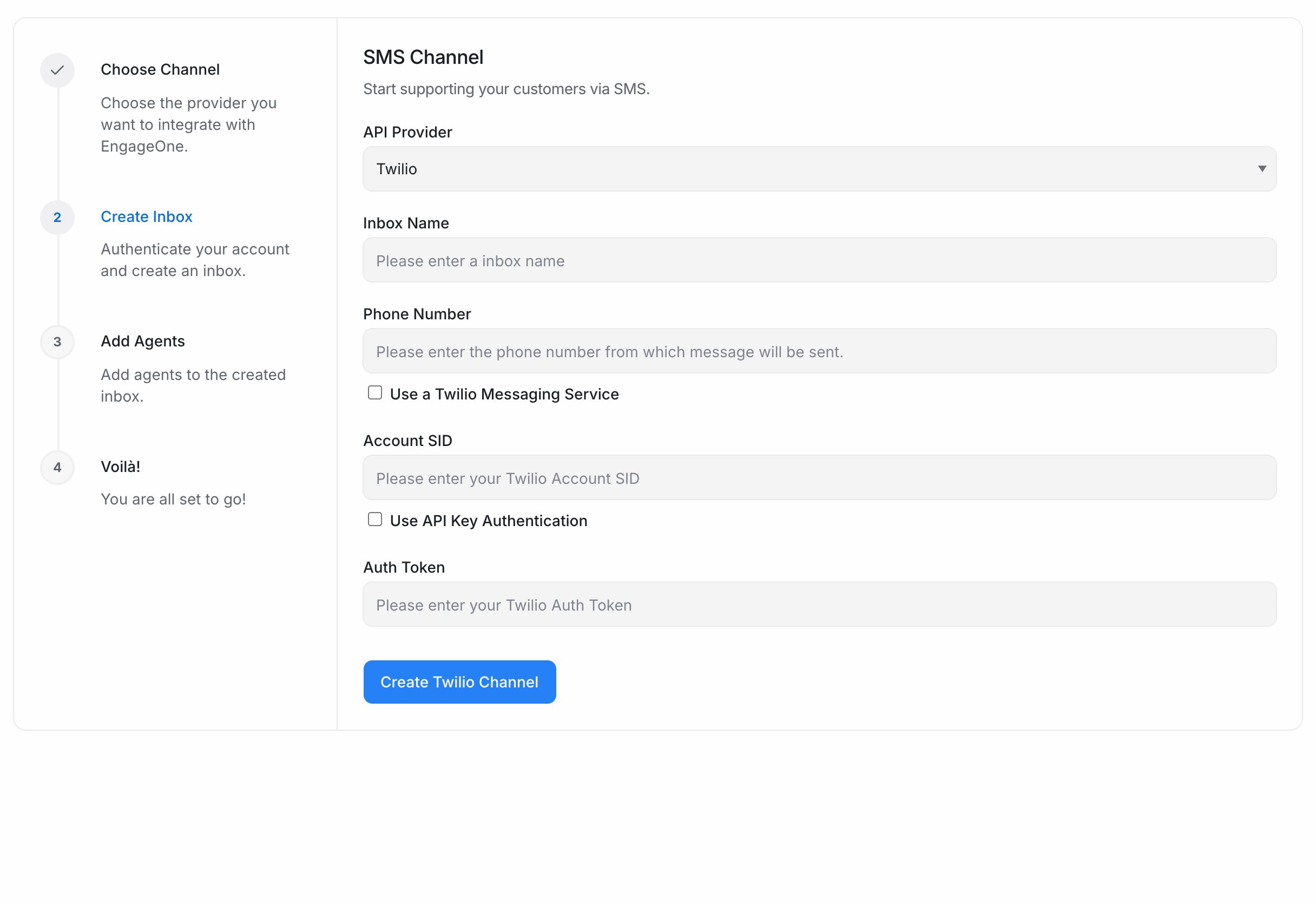
- In EngageOne, go to Settings → Inboxes → Add Inbox → SMS.
- Set API Provider to Twilio.
- Enter an Inbox Name.
- Enter the Phone Number in E.164 format, for example
+919876543210. Or tick Use a Twilio Messaging Service and enter the Messaging Service SID. - Enter the Account SID and Auth Token. To use an API key, tick Use API Key Authentication and enter the API Key SID and API Key Secret.
- Select Create Twilio Channel. EngageOne checks the credentials with Twilio and sets up the webhook for you.
- Pick the agents for this inbox and select Add agents.
- Scan the QR code on the last screen to send a test text from your phone.
Tip: Open the inbox's Account Health tab to check your Twilio account, number capabilities and webhooks. Select Register webhooks if anything is flagged, or after your EngageOne address changes.
Set up Bandwidth SMS
- In Bandwidth, note your Account ID, Application ID, API key, API secret and number.
- In EngageOne, go to Settings → Inboxes → Add Inbox → SMS.
- Set API Provider to Bandwidth.
- Enter the Inbox Name, Phone number (starting with
+), Account ID, Application ID, API Key and API Secret. - Select Create Bandwidth Channel, then add your agents.
- Copy the Callback URL from the last screen and set it as the message callback URL in your Bandwidth application.
Important: Bandwidth doesn't receive the callback URL automatically. Until you add it in Bandwidth, incoming texts won't reach EngageOne.
What's supported
| Feature | Twilio | Bandwidth |
|---|---|---|
| Send and receive text | Yes | Yes |
| Send and receive media (MMS) | Yes | Yes |
| Delivery status | Yes | Yes |
| Messaging Service SID | Yes | No |
| SMS campaigns | Yes | Yes |
| Account Health tab | Yes | No |
| Phone calls on the same number | Yes, see Phone calls with Twilio | No |
Good to know
- Phone numbers must be in E.164 format: a
+, the country code and the number, with no spaces. - Each phone number and each Messaging Service can belong to only one inbox.
- A Twilio inbox uses either a phone number or a Messaging Service, not both.
- SMS has no reply window. You can reply at any time.
- A Twilio trial account can only text numbers you've verified in Twilio.
- Carrier and country rules for business texting still apply. Check them with your provider.
Troubleshooting
| Problem | Likely cause | Fix |
|---|---|---|
| "We were not able to authenticate Twilio credentials" | Wrong Account SID, Auth Token or API key | Copy the values again from the Twilio Console |
| Incoming texts don't appear (Twilio) | The webhook is missing or points elsewhere | Open Account Health and select Register webhooks |
| Account Health says "Messaging service defers to the number" | The Messaging Service uses the number's webhook | Turn that option off in Twilio, or select Register webhooks |
| Incoming texts don't appear (Bandwidth) | The callback URL isn't set | Add the callback URL in your Bandwidth application |
| A message shows as failed | The provider rejected it | Read the error on the message, then check the number and credentials |