
Teams
Group agents into teams such as Sales or Billing, assign conversations to a team, and let EngageOne pick an available team member automatically.
On this page
Teams let you group agents by what they do, so conversations reach the right people without someone sorting them by hand.
How teams work
- A team is a group of agents, for example "Sales", "Billing" or "Technical support".
- An agent can belong to more than one team.
- You can assign a conversation to a team instead of (or as well as) a single agent.
- Teams work across inboxes. A "Billing" team can handle billing questions from website chat, WhatsApp and email.
Tip: Use inboxes for where a message comes from and teams for who should handle it.
Create a team
You need to be an administrator.
- Go to Settings → Teams.
- Click Create new team.
- Fill in:
- Team name – for example "Sales".
- Team Description – a short note about what the team handles.
- Allow auto assign for this team. – keep this ticked if EngageOne should pick a team member automatically when a conversation is assigned to the team (see below).
- Click Create team.
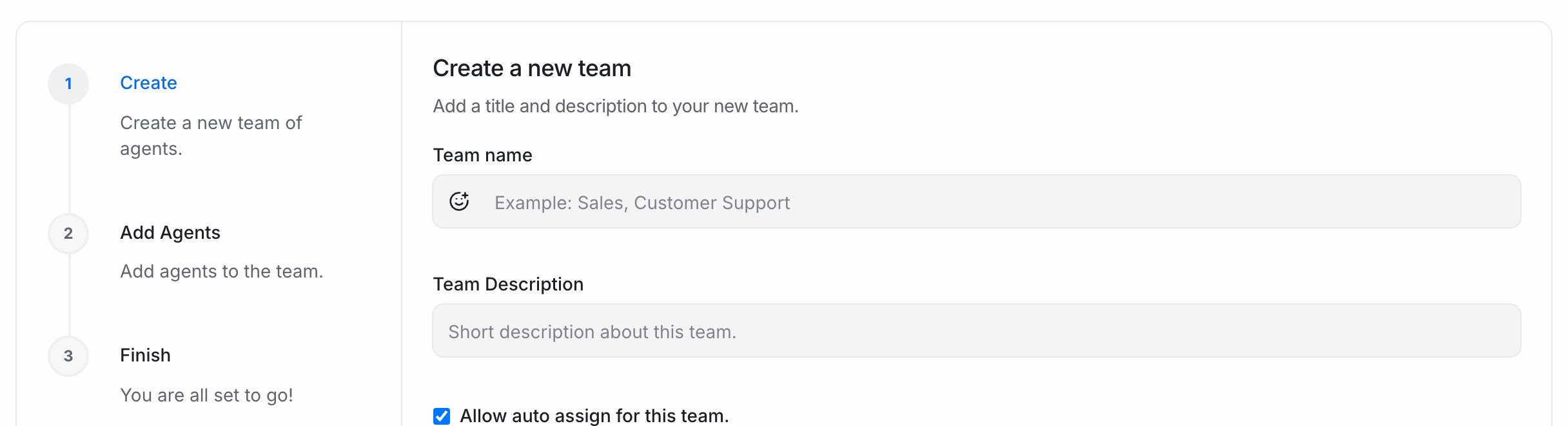
- On the Add agents to team step, select the agents who belong to this team. You can use select all agents to add everyone.
- Click Add agents.
- When you see Your team is ready!, click Finish.
Assign a conversation to a team
- Open the conversation.
- In the details panel on the right, open Conversation Actions.
- Under the team field, select the team.
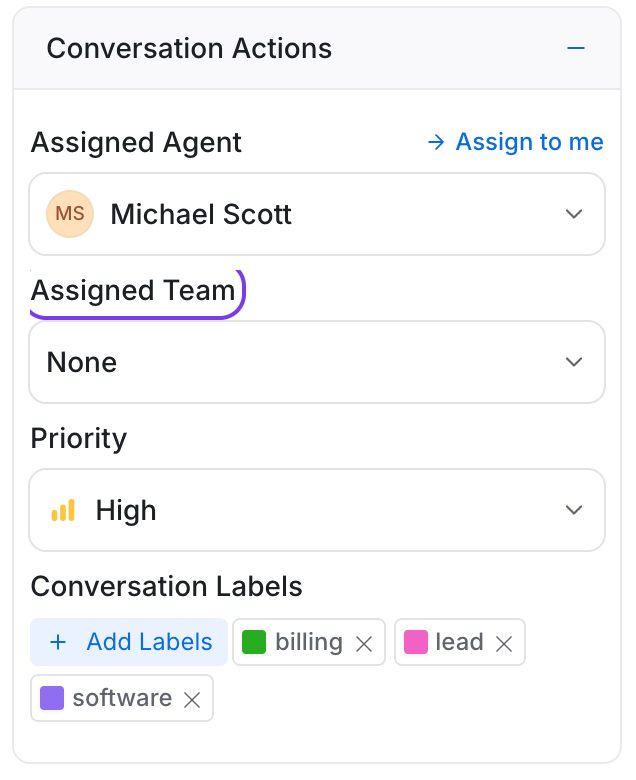
Everyone in the team can now find the conversation under Conversations → Teams → team name in the sidebar, and team members are notified that the conversation was assigned to their team.
You can also assign teams automatically, for example with an automation that sends every conversation mentioning "invoice" to the Billing team.
What "Allow auto assign" does
When a conversation is assigned to a team that has Allow auto assign for this team. turned on:
- If the conversation has no agent yet, EngageOne picks a team member automatically.
- It only picks agents who are Online, are members of the conversation's inbox, and have room under any assignment limit.
- If the current agent is not in the team, EngageOne removes them and picks a team member instead.
If auto assign is off, the conversation waits for a team member to pick it up.
Important: An agent must be a member of both the team and the conversation's inbox to be auto-assigned. If a team never receives assignments, check that its members are added to the right inboxes on the inbox's Collaborators tab.
Edit a team
- Go to Settings → Teams.
- Click Edit team next to the team.
- Change the name, description or auto-assign setting and click Update team.
- On the next step, add or remove agents and click Update agents in team.
Delete a team
- Go to Settings → Teams.
- Click Delete next to the team.
- Type the team name to confirm.
Deleting a team removes the team from all conversations that were assigned to it. The conversations themselves and their agent assignments stay as they are.