
WhatsApp (Cloud API)
Connect your WhatsApp Business number through Meta's Cloud API with quick setup or manual credentials, sync templates and reply within 24 hours.
On this page
A WhatsApp inbox lets your team chat with customers on your WhatsApp Business number, send approved templates and run WhatsApp campaigns from EngageOne.
How it works
EngageOne connects to your number through Meta's WhatsApp Cloud API.
- A customer sends a message to your business number.
- Meta forwards it to EngageOne through a webhook.
- EngageOne opens a conversation in the WhatsApp inbox, or adds the message to the customer's open conversation.
- An agent replies. EngageOne sends the reply through Meta and updates the ticks as the message is sent, delivered and read.
Before you start
- You need administrator access in EngageOne.
- You need admin access to the Meta business portfolio that owns, or will own, the number.
- The number must be able to receive a verification code by SMS or voice call.
Option 1: Quick setup with Meta
Use this for a new number, or for a number you already use in the WhatsApp Business app.
- Go to Settings → Inboxes → Add Inbox → WhatsApp.
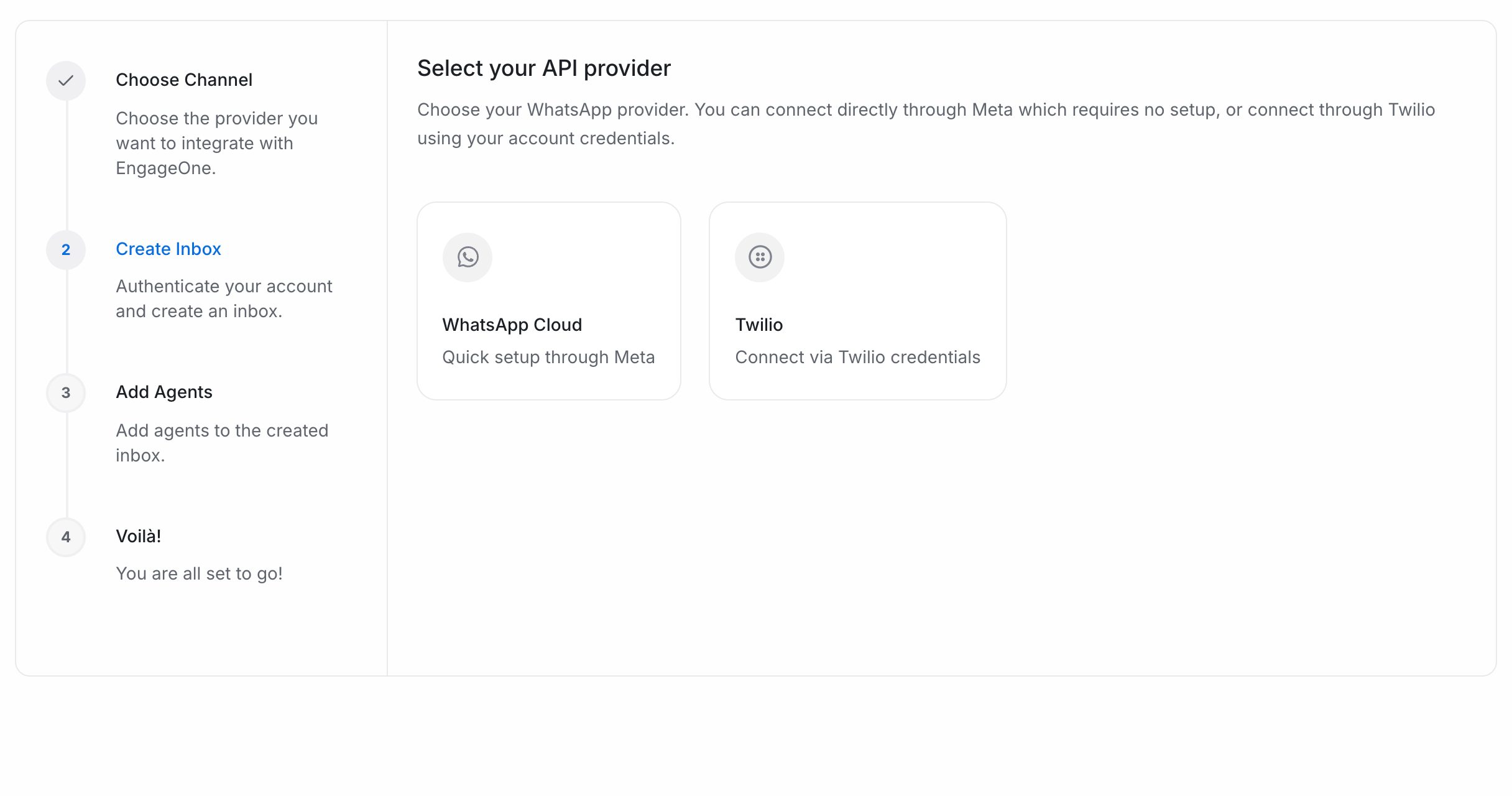
- Choose WhatsApp Cloud (Quick setup through Meta).
- Select Connect with WhatsApp Business. A Meta window opens.
- Log in to Meta, pick your business portfolio and choose or add the phone number.
- Finish the steps in the Meta window. EngageOne creates the inbox and sets up the webhook and phone number for you.
- Pick the agents who should work in this inbox and select Add agents.
Note: Quick setup appears only when your EngageOne installation has a Meta app connected for WhatsApp. If you don't see it, use manual setup.
Option 2: Manual setup with Cloud API credentials
Use this when your number is already on the WhatsApp Business Platform (API), or when you want to use your own Meta app. On the quick setup screen, select the manual setup flow link at the bottom.
Step 1: Create or select a Meta app
- Open Meta Developers and sign in with an administrator account.
- Create a new app, or select the app you already use for this number.
- Choose the option to connect with customers through WhatsApp.
- Select the business portfolio that owns the number.
Step 2: Add the number and copy its IDs
- In your Meta app, open the WhatsApp use case and choose API Setup.
- In Send and receive messages, open the From selector.
- Select an existing production number, or choose Add phone number.
- Complete the business profile and verify the number with the code Meta sends.
- Copy the Phone Number ID and the WhatsApp Business Account ID (WABA ID).
Step 3: Generate a permanent access token
- Open Meta Business Settings → Users → System users.
- Create an admin system user, or select an existing one.
- Assign your Meta app and your WhatsApp Business Account to the system user, with full control.
- Generate a token for your app and set its expiration to Never.
- Select the
whatsapp_business_managementandwhatsapp_business_messagingpermissions, then copy the token.
Important: Meta shows the token only once. Copy it before you close the dialog.
Step 4: Connect in EngageOne
- Paste the WhatsApp Business Account ID, Phone Number ID and Permanent access token.
- Select Verify details. EngageOne checks the number and token with Meta.
- Review the business name and number, and change the Inbox name if you like.
- Select Create inbox. EngageOne checks number access and template access, and sets up the webhook callback and subscription.
- Select Continue to add agents and pick your agents.
The webhook and verify token
EngageOne registers the webhook with Meta for you. If the automatic step fails, select Retry webhook setup, or set it by hand in your Meta app's WhatsApp webhook settings:
Callback URL:  https://<your-engageone-domain>/webhooks/whatsapp/<phone number with +>
Verify token:  the Webhook Verification Token shown in EngageOne
You'll find the Webhook Verification Token under Settings → Inboxes → (your WhatsApp inbox) → Configuration.
Inbox tabs for WhatsApp
| Tab | What it's for |
|---|---|
| Configuration | Shows the Webhook Verification Token. Use Update API Key to replace the access token and Sync Templates to pull templates from Meta now |
| Account Health | Shows the number's status, quality rating, messaging limit and webhook status. Use Register Webhook if the webhook is missing or points to the wrong URL |
| Calls | Turns WhatsApp calling on or off. Appears only when voice calling is enabled for your account |
Templates
Templates are messages Meta has approved in advance. You need them to start a conversation or to reply after the 24-hour window closes.
- EngageOne syncs templates from Meta automatically. To sync now, select Sync Templates in the Configuration tab, or Sync templates on the Settings → Templates page.
- To create a new template, go to Settings → Templates, create the template and select Submit for review. It stays pending until Meta approves it.
- Only templates Meta has approved can be sent.
The 24-hour customer service window
| Situation | What you can send |
|---|---|
| The customer messaged you in the last 24 hours | Any free-form message, media or template |
| More than 24 hours since the customer's last message | Approved templates only |
| You want to start a new chat | Approved templates only |
The window opens again as soon as the customer replies.
Tip: Meta charges for some template messages by category. Check Meta's current pricing for your country.
What's supported
| Feature | Supported | Notes |
|---|---|---|
| Text, images, video, audio and documents | Yes | Both ways |
| Location and contact cards | Yes | Incoming only |
| Replies to a specific message | Yes | The quoted message stays linked |
| Sent, delivered and read ticks | Yes | Failed messages show Meta's error |
| Templates and WhatsApp campaigns | Yes | Campaigns need an approved template |
| CSAT surveys | Yes | |
| Voice calls | Yes | See WhatsApp calling |
Troubleshooting
| Problem | Likely cause | Fix |
|---|---|---|
| Reply fails after a day | The 24-hour window has closed | Send an approved template |
| Customer messages don't arrive | The webhook is missing or points to an old URL | Open Account Health and select Register Webhook |
| A new template is missing | It hasn't synced yet, or Meta hasn't approved it | Select Sync Templates and check its status in Meta |
| "This access token is invalid or expired" | The token was revoked or expired | Generate a new permanent token and update it in Configuration |
| Inbox shows it's disconnected | Meta no longer accepts the connection | Follow the reconnect banner in the inbox settings |