
Calling overview
Take and make phone and WhatsApp calls in the browser, keep each call in the customer's conversation, and review calls with recordings and transcripts.
On this page
EngageOne lets your agents take and make voice calls in the browser, right next to the customer's chat history.
Two ways to call
| Phone calls (Twilio) | WhatsApp calls | |
|---|---|---|
| What the customer uses | Any phone | The WhatsApp app |
| Inbox type | A Twilio SMS inbox with calling turned on, or a new Voice inbox | A WhatsApp Cloud inbox with calling turned on |
| What you need | A voice-capable Twilio number and a Twilio API key | A number enrolled in Meta's WhatsApp Business Calling API |
| Incoming calls | Yes | Yes |
| Outgoing calls | Yes | Yes, after the customer agrees to receive calls |
| Set up guide | Phone calls with Twilio | WhatsApp calling |
Note: Calling must be enabled for your EngageOne account. If you don't see the Voice or WhatsApp Call tiles in Settings → Inboxes → Add Inbox, or they're greyed out, ask your EngageOne administrator.
What agents need
- A browser with microphone access allowed for EngageOne.
- A headset is recommended for clear audio.
- To be a member of the inbox the call comes in on.
How calls appear in EngageOne
Incoming calls
- A customer calls your number.
- Agents in that inbox see an Incoming call alert in EngageOne.
- An agent selects Join call to answer, or Reject to decline.
- The call is added to the customer's conversation, so the agent sees the full chat history while talking.
Outgoing calls
- Open the customer's conversation.
- Select the call button in the conversation header (Start call, or Start WhatsApp call in a WhatsApp inbox).
- EngageOne rings the customer from your business number.
During a call you can Mute mic, Unmute mic and End call.
The Calls page
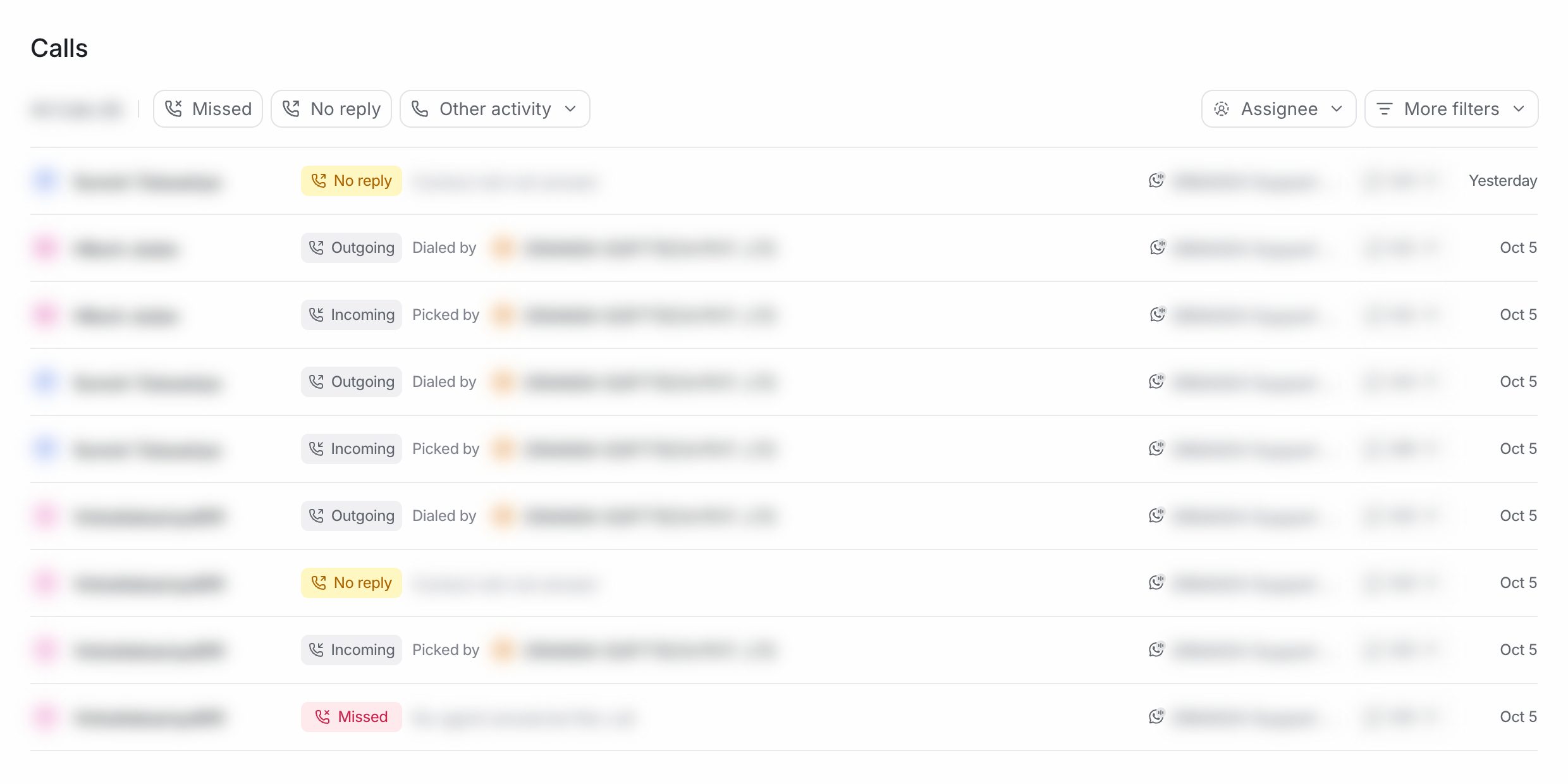
Select Calls in the sidebar to see every call across your voice inboxes.
- Filter by Incoming, Outgoing, Missed, No reply and In progress.
- Filter by Inbox and Assignee.
- Each row shows who picked up or dialed the call, and links to the conversation.
Recordings and transcripts
Each voice inbox has two settings that control what is saved:
| Setting | What it does |
|---|---|
| Record calls | Records each call and attaches the recording to the conversation |
| Transcribe recordings | Turns each recording into a text transcript. Needs Record calls, and audio transcription must be enabled for your account. It's part of the EngageOne AI Assistant |
Important: Recording laws differ by country and region. Turn off Record calls wherever recording isn't allowed, and tell customers when calls are recorded.