
Phone calls with Twilio
Connect a Twilio phone number so agents can take and make phone calls in the browser, with optional call recording and transcripts.
On this page
With Twilio Voice, your agents can answer and place regular phone calls from EngageOne in their browser.
How it works
A Twilio voice inbox is a Twilio SMS inbox with calling turned on. The same number handles both texts and calls.
- A customer calls your Twilio number.
- Twilio sends the call to EngageOne, and agents in the inbox see an Incoming call alert.
- An agent selects Join call and talks to the customer in the browser.
- The call is logged in the customer's conversation, with a recording and transcript if you've turned them on.
Before you start
- Calling must be enabled for your EngageOne account.
- A Twilio phone number with voice capability. A Messaging Service can't be used for calls.
- Your Twilio Account SID and Auth Token.
- A Twilio API key: create one in the Twilio Console and copy the API Key SID and API Key Secret.
Option 1: Create a new voice inbox
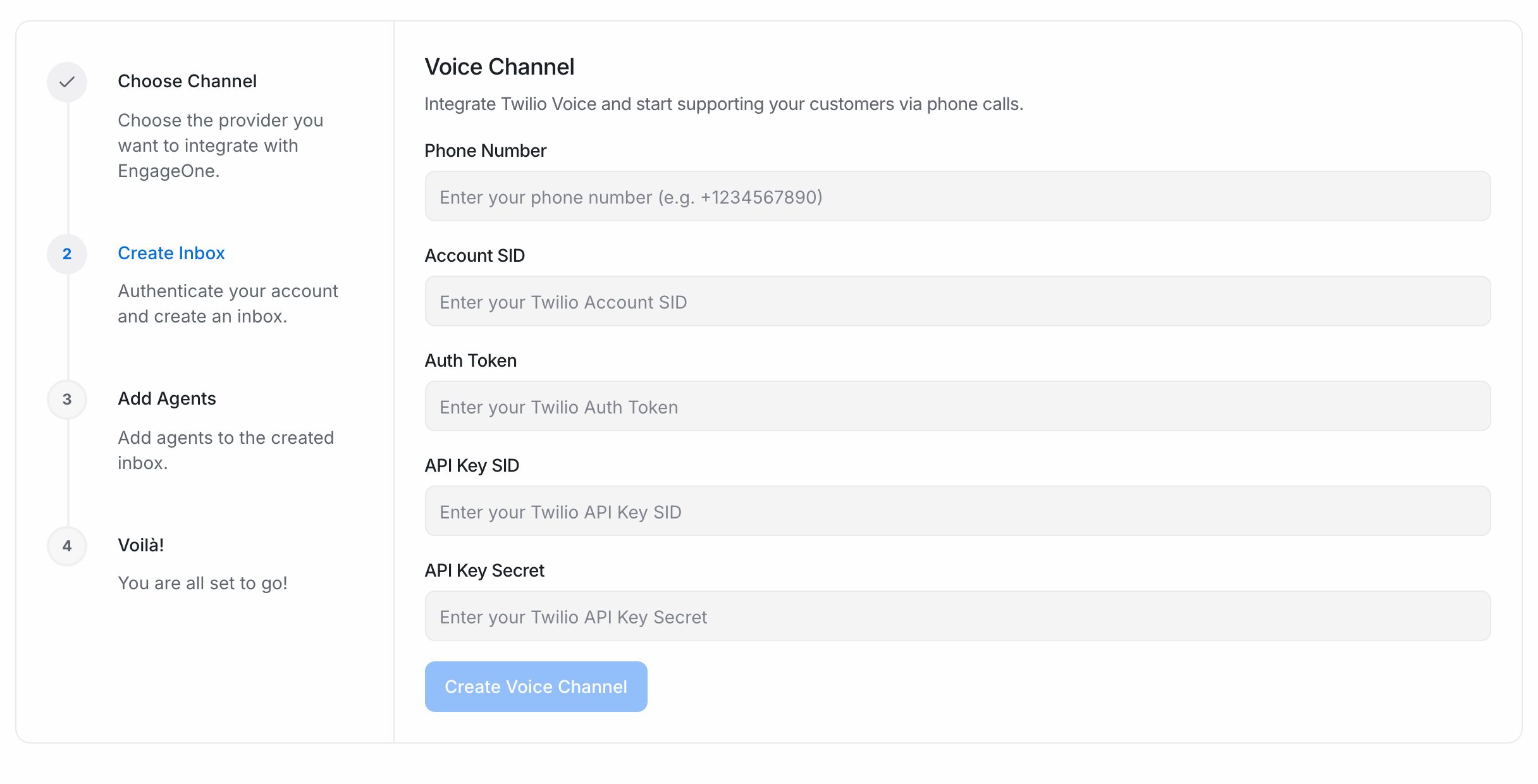
- Go to Settings → Inboxes → Add Inbox → Voice.
- Enter the Phone Number in E.164 format, for example
+919876543210. - Enter the Account SID, Auth Token, API Key SID and API Key Secret. All are required.
- Select Create Voice Channel.
- Pick the agents who should take calls and select Add agents.
- Optional: rename the inbox in its settings.
Option 2: Turn on calling for an existing Twilio SMS inbox
- Go to Settings → Inboxes and open your Twilio SMS inbox.
- Open the Voice tab.
- Turn on Enable Voice Calling.
- If the inbox doesn't have an API key yet, enter the API Key SID and API Key Secret.
- Select Update.
When calling turns on, EngageOne checks that the number is in your Twilio account and supports voice. It then sets up the number's voice webhooks and the app Twilio needs for outgoing calls. Turning calling off removes them again.
Note: The Voice tab appears only on Twilio SMS inboxes that use a phone number, and only when calling is enabled for your account.
Voice settings
| Setting | What it does |
|---|---|
| Allow incoming calls | Lets customers call this number. When off, incoming calls are declined automatically and no conversation is created. Agents can still call out |
| Record calls | Records each call and attaches the recording to the conversation |
| Transcribe recordings | Creates a text transcript of each recording. Needs audio transcription enabled for your account |
| Twilio Voice URL and Twilio Status Callback URL | Shown for reference. EngageOne sets them on your number for you |
Check your setup
Open the inbox's Account Health tab. It shows your Twilio account status, the number's capabilities and whether these webhooks are set correctly:
- Messaging webhook
- Voice webhook
- Voice status callback
- Outbound calling (TwiML app)
Select Register webhooks to fix anything that's flagged, or after your EngageOne address changes.
Troubleshooting
| Problem | Likely cause | Fix |
|---|---|---|
| "Phone number not found in Twilio account" | The number isn't in this Twilio account | Check the number and the Account SID |
| "This phone number does not support voice calls" | The number has no voice capability | Use a voice-capable Twilio number |
| Customers can't call in, but agents can call out | Allow incoming calls is off | Turn it on in the Voice tab |
| Calls don't reach EngageOne | A TwiML app or SIP trunk on the number overrides EngageOne's webhook | Detach it in the Twilio Console, then select Register webhooks |
| An agent can't hear or speak | The browser blocked the microphone | Allow microphone access for EngageOne and reload |
| A Twilio trial account can't call a customer | Trial accounts only reach verified numbers | Verify the number in Twilio or upgrade the account |
| No transcript appears | Recording or transcription is off, or audio transcription isn't enabled | Check the Voice tab and ask your administrator |