
WhatsApp through Twilio
Connect a WhatsApp sender you registered with Twilio, so your team can answer WhatsApp messages in EngageOne using your Twilio account.
On this page
If your WhatsApp number is registered through Twilio, you can connect it to EngageOne with your Twilio credentials instead of connecting to Meta directly.
When to use Twilio for WhatsApp
| Choose | When |
|---|---|
| WhatsApp Cloud | You manage the number yourself in Meta. See WhatsApp (Cloud API) |
| Twilio | Your WhatsApp sender is already set up in Twilio, or you want billing and sender management to stay in Twilio |
How it works
- A customer sends a WhatsApp message to your Twilio sender.
- Twilio forwards the message to EngageOne.
- EngageOne finds the contact by phone number, or creates one, and opens a conversation.
- An agent replies. EngageOne sends the reply through Twilio and shows whether it was sent, delivered or failed.
When you create the inbox, EngageOne points your Twilio number (or Messaging Service) at its callback URL for you.
Before you start
- A Twilio account with a registered WhatsApp sender.
- Your Twilio Account SID and Auth Token, or an API Key SID and API Key Secret.
- The sender's phone number in E.164 format: a
+, the country code and the number, with no spaces. For example+919876543210.
Set up
- Go to Settings → Inboxes → Add Inbox → WhatsApp.
- Choose Twilio.
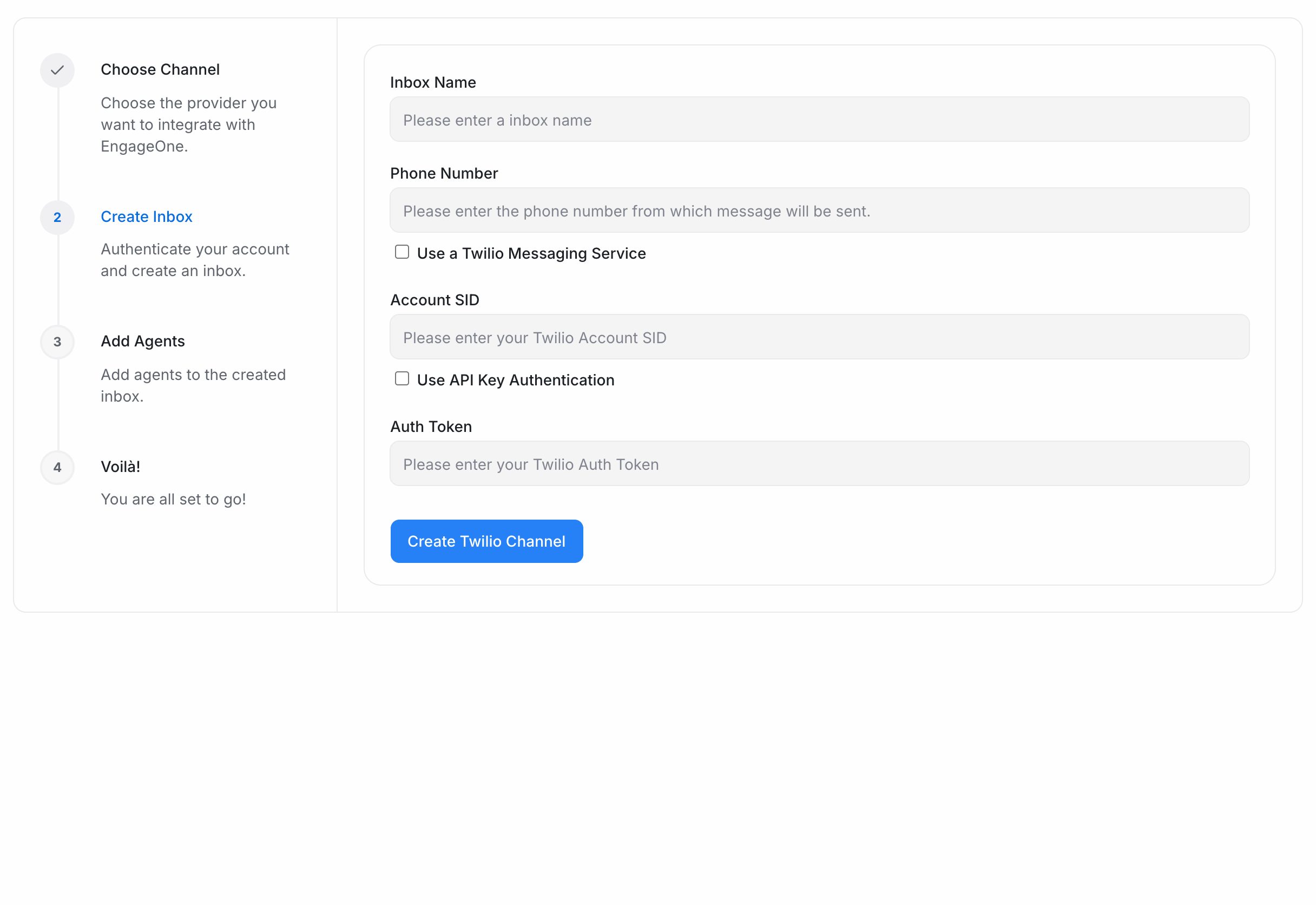
- Enter an Inbox Name.
- Enter the Phone Number. Or tick Use a Twilio Messaging Service and enter the Messaging Service SID instead.
- Enter your Account SID.
- Enter your Auth Token. To use an API key instead, tick Use API Key Authentication and enter the API Key SID and API Key Secret.
- Select Create Twilio Channel. EngageOne checks your credentials with Twilio.
- Pick the agents for this inbox and select Add agents.
- The last screen shows a QR code. Scan it with your phone to send a test message.
Note: The last screen also shows a Callback URL. Webhooks are set up automatically, so you only need it if incoming messages don't arrive.
Templates and the 24-hour window
WhatsApp rules still apply when you use Twilio.
- You can send free-form replies for 24 hours after the customer's last message.
- After that, or to start a new chat, you must send an approved template.
- EngageOne syncs your Twilio Content templates into the inbox. Create and manage them in Twilio. You'll see them under Settings → Templates, with a Manage in Twilio link.
What's supported
| Feature | Supported | Notes |
|---|---|---|
| Text and media messages | Yes | Both ways |
| Incoming location | Yes | |
| Delivery status | Yes | Sent, delivered and failed, as reported by Twilio |
| Twilio Content templates | Yes | Needed outside the 24-hour window |
| Messaging Service SID | Yes | Use a phone number or a Messaging Service, not both |
| Voice calls | No | For WhatsApp calls, use a WhatsApp Cloud inbox. See WhatsApp calling |
Troubleshooting
| Problem | Likely cause | Fix |
|---|---|---|
| "We were not able to authenticate Twilio credentials" | The Account SID, Auth Token or API key is wrong | Copy the values again from the Twilio Console |
| Incoming messages don't arrive | Twilio is calling a different URL | Set the callback URL from the finish screen in Twilio |
| Reply box is locked | The 24-hour window has closed | Send an approved template |
| A Twilio trial account can't reach a customer | Trial accounts only reach verified numbers | Verify the number in Twilio or upgrade the account |