
Profile and notifications
Set up your EngageOne profile, availability status, signature and send hotkey, and choose email, push, audio and mobile notifications.
On this page
This article helps you set up your own profile and decide how EngageOne tells you about new conversations and messages.
Open your profile settings
- Click your avatar at the bottom of the left sidebar.
- Click Profile settings.
Everything in this article is personal. Changes affect only you, not the rest of your team.
Update your name and photo
- Under Profile Picture, click Upload image and choose a square photo.
- Fill in:
- Your full name – your real name, used inside the team.
- Display name – the name customers see next to your replies. Many teams use a first name only.
- Your email address – the address you sign in with.
- Click Update Profile.
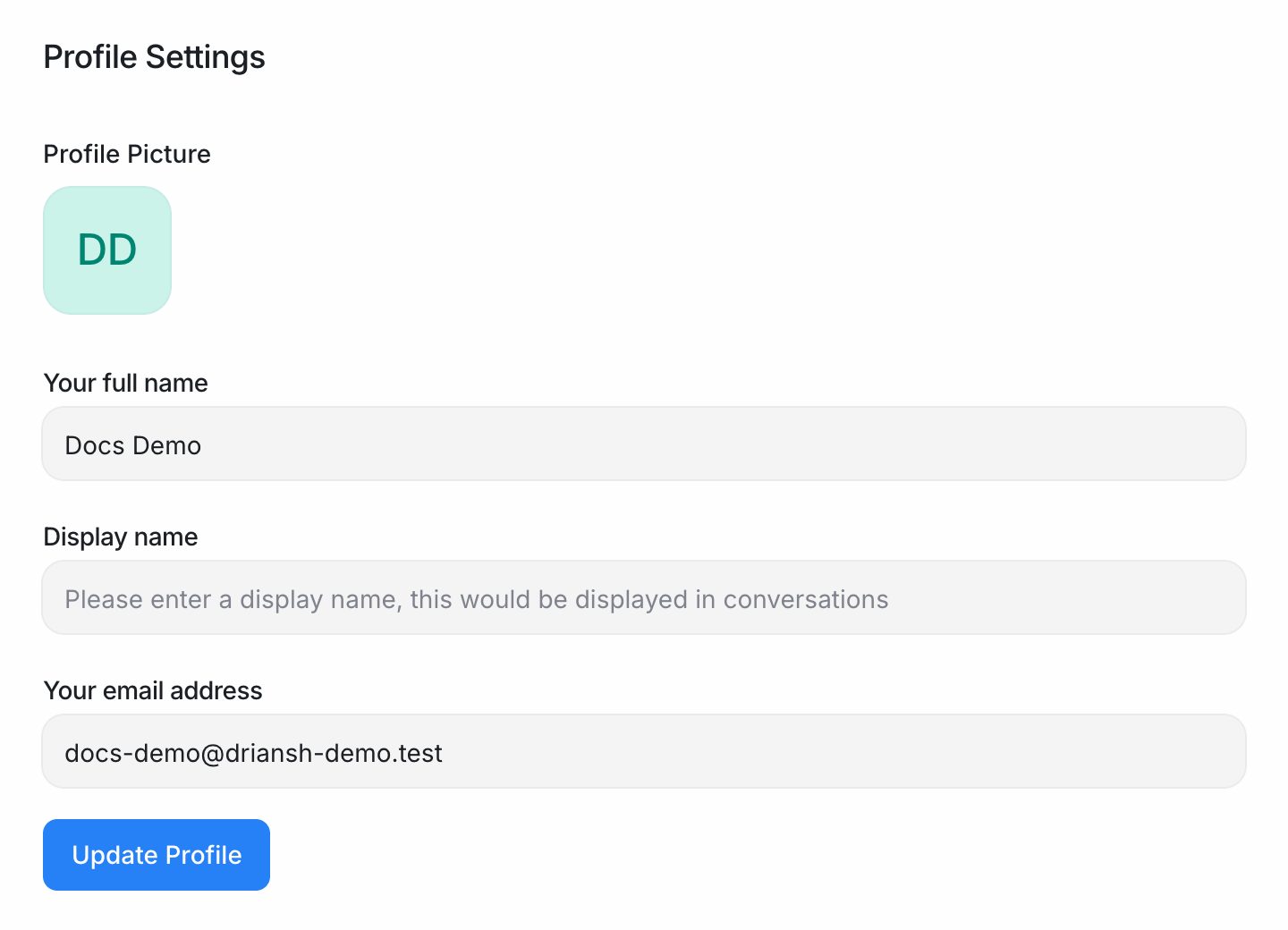
Note: If you change your email address, EngageOne signs you out. Sign in again with the new address.
Set your availability
Your availability tells your team, and EngageOne's automatic assignment, whether you can take conversations.
- Click your avatar at the bottom of the sidebar.
- Under Set your availability, choose:
| Status | When to use it | Effect |
|---|---|---|
| Online | You are working and can reply. | You can receive new auto-assigned conversations. |
| Busy | You are working but shouldn't get new chats. | You are skipped by automatic assignment. |
| Offline | You are away. | You are skipped by automatic assignment. |
The same menu has a Mark offline automatically switch. When it is on, EngageOne sets you to offline when you are not using the dashboard or app, and back to online when you return.
Tip: Turn off Mark offline automatically if you want to stay online while you work in other tabs, for example during a shift when you must keep receiving chats.
Interface preferences
In the Interface section you can change:
- Font size – make text across the dashboard smaller or larger, from Smaller to Extra Large.
- Preferred Language – the language of the dashboard for you. Choose Use account default to follow the account's language.
Personal message signature
A signature is added to the end of the messages you send from any inbox.
- In Personal message signature, type your signature, for example your name and job title.
- Optionally add an image, such as a small logo, with the upload button.
- Click Save message signature.
Hotkey to send messages
Choose how you send a message from the reply box:
- Enter (↵) – press Enter to send. Use Shift + Enter for a new line.
- Cmd/Ctrl + Enter (⌘ + ↵) – press Enter for a new line and Cmd/Ctrl + Enter to send. Good for long replies such as emails.
Click the option you prefer. It saves straight away.
Password and security
- Password – enter your Current password, a New password and Confirm new password, then click Change password. Changing your password signs you out on your other devices.
- Security – if two-factor authentication is available on your installation, click Manage Two-Factor Authentication to add a code from an authenticator app when you sign in.
- Active Sessions – see the devices signed in to your account. Click Revoke next to any device you don't recognise.
Notification preferences
Under Notification preferences, a table lists each event and two columns, Email and Push notification. Tick the boxes for the events you want to hear about:
| Event | Good default for agents |
|---|---|
| A new conversation is created | Off for busy inboxes, on for small teams |
| A conversation is assigned to you | Email and push |
| You are mentioned in a conversation | Email and push |
| A new message is created in an assigned conversation | Push |
| A new message is created in a participating conversation | Optional |
| A conversation misses first response SLA | Push (if your account uses SLAs) |
| A conversation misses next response SLA | Push (if your account uses SLAs) |
| A conversation misses resolution SLA | Push (if your account uses SLAs) |
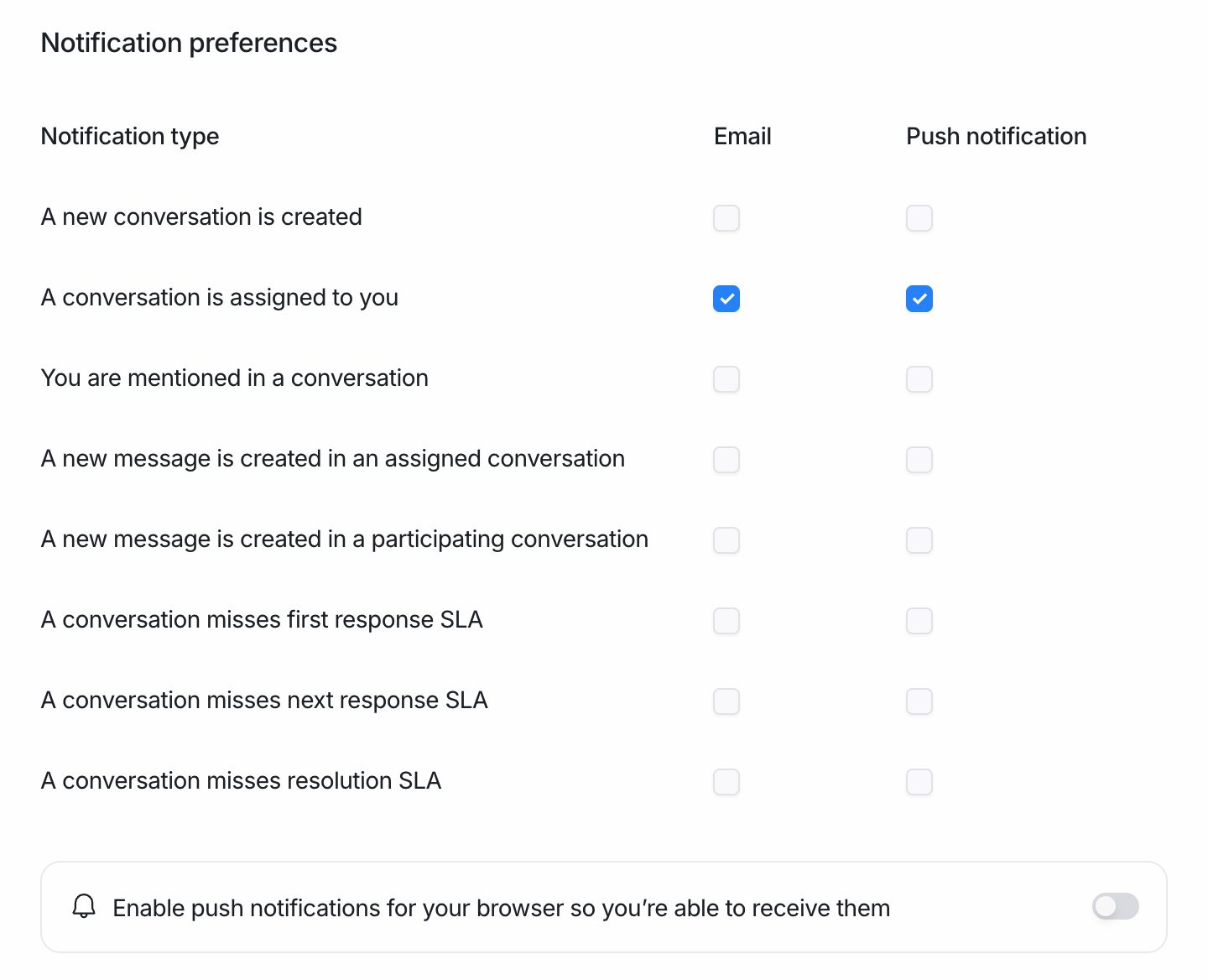
Assignments, mentions and new messages also appear in My Inbox in the sidebar, whatever you tick here. New-conversation alerts appear in My Inbox only if you tick Email or Push notification for them.
Turn on browser push notifications
Push notifications appear on your computer even when the EngageOne tab is in the background.
- In Notification preferences, find Enable push notifications for your browser so you're able to receive them and turn the switch on.
- When your browser asks for permission, click Allow.
- Tick the events you want in the Push notification column.
Repeat this on each browser and computer you use.
Note: If you clicked Block by mistake, open your browser's site settings for EngageOne, set Notifications to Allow, and reload the page.
Audio alerts
In Audio Alerts, choose when EngageOne plays a sound in the dashboard:
- Under Alert events for conversations, pick which conversations trigger a sound: My assigned conversations, Unassigned conversations and/or Open conversations assigned to others.
- Pick an Alert tone and click Play sound to hear it.
- Under Alert conditions, optionally tick:
- Send audio alerts only if the browser window is not active
- Send alerts every 30s until all the assigned conversations are read
Tip: If you hear nothing, your browser may block autoplay. Click anywhere on the page once, or allow sound for the EngageOne site in your browser settings.
Mobile apps
The Driansh EngageOne mobile apps for iOS and Android let you reply to customers, pick up assigned conversations and get push notifications on your phone.
- Ask your administrator or Driansh support for the app download link for your account.
- Open the app and sign in with the same email and password you use in the browser. If the app asks for your server or installation URL, enter the address you use to open EngageOne in your browser.
- Allow notifications when your phone asks.
Your Push notification choices in Notification preferences also apply to the mobile app.
Access token
The Access Token section shows a personal key for building API integrations. Treat it like a password: don't share it, and click Reset if you think it has leaked.