
Create an assistant
Create an EngageOne AI Assistant, give it a name and persona, connect it to your inboxes and control when it hands conversations to your team.
On this page
This guide shows you how to create an assistant, shape how it talks, connect it to your inboxes and decide when it passes conversations to your team.
Before you start
- You need the Administrator role.
- The AI features must be turned on for your workspace. See Introduction to the EngageOne AI Assistant.
- Have at least one inbox ready, such as your website live chat.
Step 1: Create the assistant
- In the left sidebar, open AI Assistant.
- If this is your first assistant, click the create button on the empty page. Otherwise, open the assistant switcher at the top of the AI Assistant menu and click Create Assistant.
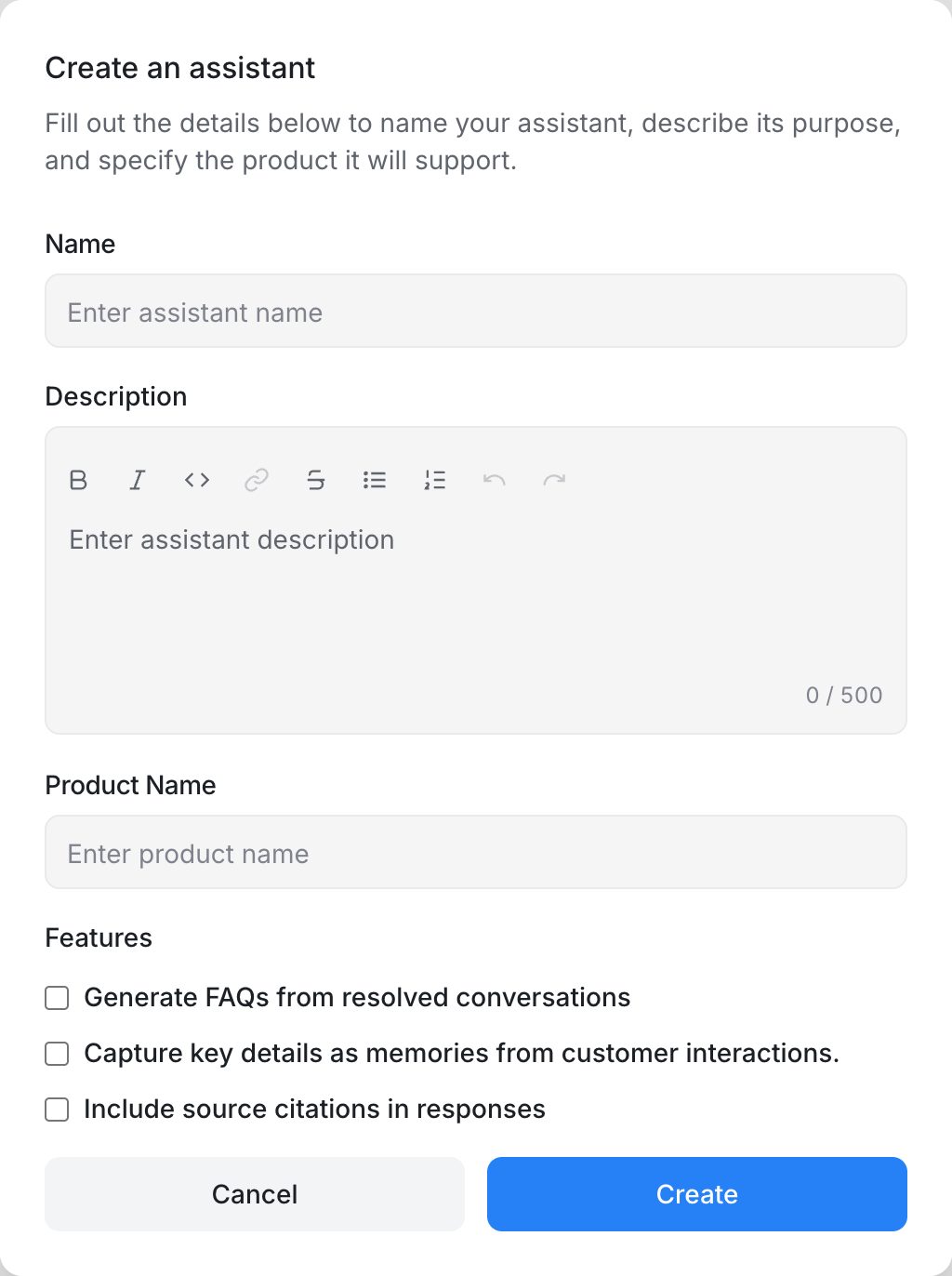
- Fill in the form:
| Field | What to enter |
|---|---|
| Name | The name customers may see, for example "Ava from Acme". |
| Description | A short description of what the assistant is for and who it helps. |
| Product Name | The product or business the assistant supports. |
- Under Features, choose the options you want:
- Generate FAQs from resolved conversations – the assistant suggests new FAQs based on conversations your team has solved.
- Capture key details as memories from customer interactions – the assistant remembers useful details about a customer.
- Include source citations in responses – replies can link to the source they came from.
- Click Create.
Step 2: Shape the persona and tone
Open AI Assistant → Settings to fine-tune your assistant. The settings page has several tabs.
Basic settings
Change the Name, Description and Product Name, and turn features on or off. Here you can also turn on Allow access to contact information, so the assistant can use details such as the customer's name when it replies. Click Update to save.
Instructions, guidelines and guardrails
Depending on your workspace, you'll see one of these options:
- Instructions (under System settings) – one text box where you describe how the assistant should behave.
- Response guidelines and Guardrails tabs – separate lists of short rules.
- Response guidelines set the style of replies, for example "Keep answers under three sentences" or "Use a friendly, informal tone".
- Guardrails keep the assistant on topic, for example "Don't give legal or medical advice" or "Only answer questions about our products".
Write each rule as one clear sentence. You can start from the example rules shown on each tab and click Add this or Add all.
Tip: Short, specific rules work better than long paragraphs. Test each change in the Playground before customers see it.
Step 3: Set handoff and closing behaviour
Open AI Assistant → Settings → System settings.
- Handoff message – the message customers see when the assistant passes the conversation to your team, for example "I'm connecting you with a member of our team now."
- When customers stop replying – choose what happens when a customer goes quiet:
| Option | What happens |
|---|---|
| Wait for the customer | The assistant never closes the conversation on its own. It stays Pending until the customer replies. |
| Always resolve | The assistant resolves every quiet conversation after the time you choose. |
| Let the assistant review it (recommended) | After the time you choose, the assistant decides whether to resolve the conversation or hand it to your team. |
- If you choose a resolve option, you can also turn on a closing message that is sent before the conversation is resolved.
Important: Always resolve closes conversations without checking them first. Some customers who still need help may have their conversations closed.
How handoff works
The assistant hands a conversation to your team when:
- the customer asks to talk to a person,
- the assistant can't find an answer in its knowledge,
- the request is something it isn't allowed to handle, or
- a scenario tells it to hand off.
When this happens, the assistant sends your handoff message, adds a private note with the reason, and changes the conversation status from Pending to Open so your agents can pick it up.
Step 4: Choose who and when the assistant serves
Audience
Open AI Assistant → Settings → Audience.
- Everyone – the assistant replies to every conversation in its connected inboxes.
- Specific audience – the assistant replies only to customers who match your conditions. Click Add condition or Add condition group and choose from contact attributes, conversation details (such as Browser language or First message language), Logged-in user and custom attributes. Conversations from other customers go straight to your team.
Schedule
Open AI Assistant → Settings → Schedule and choose:
- Anytime – the assistant replies at all times.
- During business hours – the assistant replies only while each inbox is open.
- Outside business hours – the assistant replies only while each inbox is closed.
Outside the chosen window, conversations go to your team. Inboxes without business hours are always covered. See Business hours and away messages.
Step 5: Connect inboxes
The assistant doesn't reply anywhere until you connect it to an inbox.
- Open AI Assistant → Inboxes.
- Click Connect a new inbox.
- Choose the inbox from the Inbox list.
- Click Create.
To stop the assistant replying in an inbox, open the inbox's menu on the same page and click Disconnect.
Note: Each inbox can use one assistant at a time. If the inbox also has another bot connected, that bot takes priority and the assistant won't reply, so disconnect the other bot first.
Step 6: Test in the Playground
- Open AI Assistant → Playground.
- Type a question a customer might ask and press Enter.
- Check the answer, the tone and whether it hands off when it should.
- Use Test setup to try a temporary scenario, guideline, guardrail or piece of knowledge without changing the saved assistant. If it works, save it permanently from the same panel.
- Click Clear conversation to start a new test.
Delete an assistant
Open AI Assistant → Settings, scroll to Delete Assistant and confirm. This removes the assistant from all connected inboxes and permanently deletes its knowledge.