
Identify logged-in users
Pass user details, custom attributes and labels to EngageOne live chat with the widget SDK, and secure it with identity validation.
On this page
If visitors log in to your website or app, you can tell the chat widget who they are. Your agents then see the right name, email and history instead of an anonymous visitor.
How it works
After the widget loads, it exposes a small JavaScript object with methods such as setUser and setLabel. You call these methods from your own code, usually right after a user logs in.
window.$chatwoot      // the widget object you call methods on
"chatwoot:ready"      // the browser event fired when the widget has loaded
These are the widget's technical names in code. They do not match the EngageOne brand, but they cannot be renamed, and your visitors never see them. Use them exactly as shown in the examples below.
Wait until the widget is ready
Call the SDK methods only after the widget has loaded. Listen for the ready event:
window.addEventListener("chatwoot:ready", function () {
  // The widget is ready. You can call window.$chatwoot methods here.
});
Set the user
Call setUser with a unique ID from your system and an object with the user's details.
window.$chatwoot.setUser("user-1234", {
  name: "Priya Shah",
  email: "priya@example.com",
  avatar_url: "https://example.com/avatars/priya.png",
  phone_number: "+919876543210",
});
- The first value is the identifier. Use a stable ID from your own database, such as a user ID. It must be a string or a number.
- The object must include at least one of
name,emailoravatar_url.
You can also send these optional fields. They appear in the contact's details:
| Field | Example |
|---|---|
phone_number |
"+919876543210" (international format) |
company_name |
"Acme Ltd" |
city |
"Ahmedabad" |
country_code |
"IN" |
description |
"Premium customer since 2023" |
social_profiles |
{ twitter: "priya", linkedin: "priyashah" } |
Tip: The widget remembers the last details it sent. Calling
setUseragain with the same details does nothing, so it is safe to call it on every page load.
Add custom attributes
Custom attributes store extra facts about the contact, such as their plan or sign-up date. Create the attribute first under Settings → Custom Attributes so agents see a proper name and type. See Custom attributes.
// Contact attributes
window.$chatwoot.setCustomAttributes({
  plan: "pro",
  signed_up_on: "2025-04-01",
});

// Remove one contact attribute
window.$chatwoot.deleteCustomAttribute("plan");

// Attributes on the current conversation only
window.$chatwoot.setConversationCustomAttributes({
  order_id: "ORD-5521",
});

window.$chatwoot.deleteConversationCustomAttribute("order_id");
Use the attribute Key you set in EngageOne, not its display name.
Add or remove labels
Labels on the conversation help your team sort and report on chats. The label must already exist under Settings → Labels, and the visitor must already have a conversation. Otherwise the call is ignored.
window.$chatwoot.setLabel("pricing-page");
window.$chatwoot.removeLabel("pricing-page");
Other useful methods
window.$chatwoot.toggle("open");          // open the chat window ("close" closes it)
window.$chatwoot.toggleBubbleVisibility("hide"); // hide the bubble ("show" brings it back)
window.$chatwoot.setLocale("hi");          // change the widget language
window.$chatwoot.setColorScheme("dark");   // "light", "auto" or "dark"
window.$chatwoot.popoutChatWindow();       // open the chat in a new window
Reset when the user logs out
When a user logs out, clear their session so the next person on the same device starts fresh:
window.$chatwoot.reset();
Important: Always call
reset()on logout. Otherwise the next visitor on a shared computer could see the previous user's conversations.
Listen for widget events
The widget sends a few browser events you can use for analytics or custom behaviour:
"chatwoot:ready"                  // the widget has loaded
"chatwoot:on-message"             // a new message arrives in the widget
"chatwoot:on-start-conversation"  // the visitor starts a new conversation
"chatwoot:error"                  // something went wrong, for example a failed identity check
For example:
window.addEventListener("chatwoot:on-message", function (event) {
  console.log("New chat message", event.detail);
});
Secure user identity with identity validation
Without validation, anyone who knows a user's ID could call setUser in their browser and pretend to be that user. Identity validation stops this. Your server signs each user's identifier with a secret key, and EngageOne checks the signature.
1. Get the secret key
- Go to Settings → Inboxes and select your website inbox.
- Click the Configuration tab.
- Under Identity Validation, copy the Secret Key.
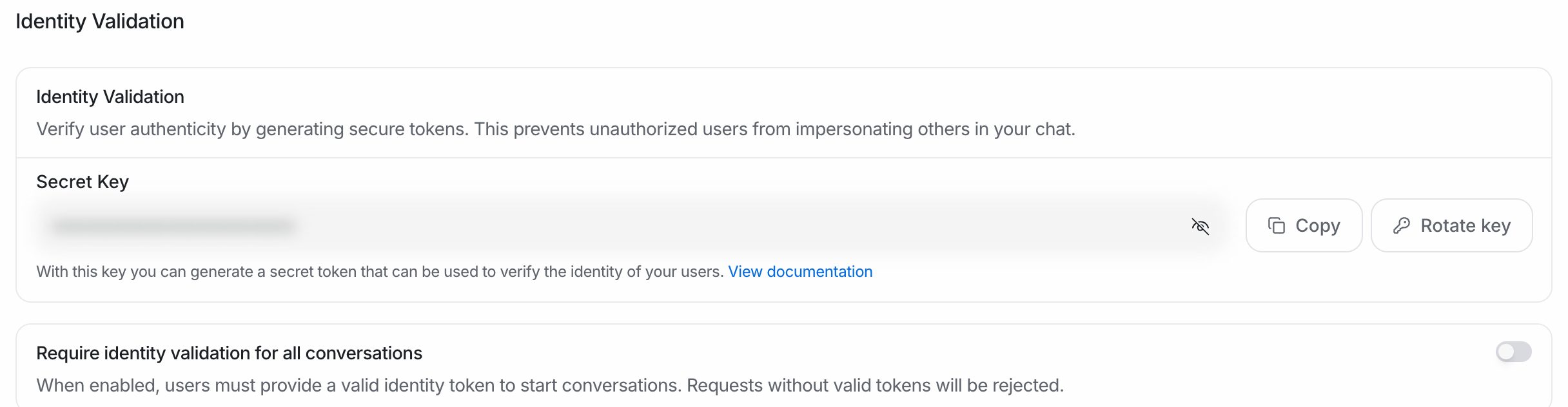
Important: Keep this key on your server only. Never put it in your website's JavaScript or in a mobile app.
2. Create the hash on your server
Create an HMAC-SHA256 hash of the user's identifier, using the secret key, and output it as a hex string.
Node.js:
const crypto = require("crypto");

const identifierHash = crypto
  .createHmac("sha256", process.env.ENGAGEONE_WIDGET_SECRET)
  .update(String(user.id))
  .digest("hex");
PHP:
$identifierHash = hash_hmac('sha256', (string) $user->id, getenv('ENGAGEONE_WIDGET_SECRET'));
Python:
import hmac, hashlib, os

identifier_hash = hmac.new(
    os.environ["ENGAGEONE_WIDGET_SECRET"].encode(),
    str(user.id).encode(),
    hashlib.sha256,
).hexdigest()
3. Send the hash with setUser
Pass the hash to your page and include it as identifier_hash:
window.$chatwoot.setUser("user-1234", {
  name: "Priya Shah",
  email: "priya@example.com",
  identifier_hash: "HASH_FROM_YOUR_SERVER",
});
The identifier you pass to setUser must be exactly the same value you signed on the server.
4. Require validation (optional)
On the Configuration tab, turn on Require identity validation for all conversations. When this is on, requests without a valid hash are rejected.
Note: Turn this on only after every page that calls
setUsersends a valididentifier_hash.
Rotate the secret key
If your key is exposed, click Rotate key under Identity Validation. The old key stops working immediately, with no overlap period. Update your servers with the new key at the same time, or users signed with the old key fail validation.