
Inboxes and channels explained
Understand how channels and inboxes work in EngageOne, which channels you can connect, and how to plan, create and manage your inboxes.
On this page
This article explains the difference between a channel and an inbox, and helps you decide how many inboxes to create.
Channels and inboxes in one minute
- A channel is the way a customer reaches you: website chat, WhatsApp, Instagram, email and so on.
- An inbox is what you create in EngageOne to connect one channel. Messages from that channel arrive in that inbox as conversations.
Each inbox has its own name, members, settings and business hours. You can create as many inboxes as you need, including several of the same type. For example, you might have one WhatsApp inbox for Sales and another for Support.
Channels you can connect
| Channel | Good for | Setup guide |
|---|---|---|
| Website | Live chat on your website or web app | Website live chat |
| Chat with customers on WhatsApp through the WhatsApp Cloud API | ||
| WhatsApp (Twilio) | WhatsApp through a Twilio account | WhatsApp via Twilio |
| Facebook Messenger messages to your Facebook Page | Facebook Messenger | |
| Instagram direct messages | ||
| A shared support mailbox, such as Gmail, Outlook or any IMAP/SMTP provider | ||
| SMS | Text messages through Twilio or Bandwidth | SMS |
| Telegram | A Telegram bot for your business | Telegram |
| Line | LINE Official Account messages | LINE |
| TikTok | TikTok direct messages | TikTok |
| API | Any custom channel you build, such as your own mobile app | API channel |
| Voice and WhatsApp Call | Phone and WhatsApp voice calls | Calling overview |
Note: Which channels you see depends on your plan and how your installation is configured. If a channel is missing from the list, contact Driansh.
How many inboxes do you need?
Use these rules of thumb:
- One inbox per phone number, page, mailbox or website. Each WhatsApp number, Facebook Page, Instagram account, email address and website needs its own inbox.
- Split by team when it helps. If different people answer sales and support, separate inboxes (or separate teams) keep their work apart.
- Keep names clear. Name inboxes so everyone knows what they are, for example "Website – Main site", "WhatsApp – Support" or "Email – billing@".
Tip: Don't create extra inboxes just to sort conversations by topic. Use labels and teams for that instead. Fewer inboxes are easier to manage.
Create an inbox
- Go to Settings → Inboxes.
- Click Add Inbox.
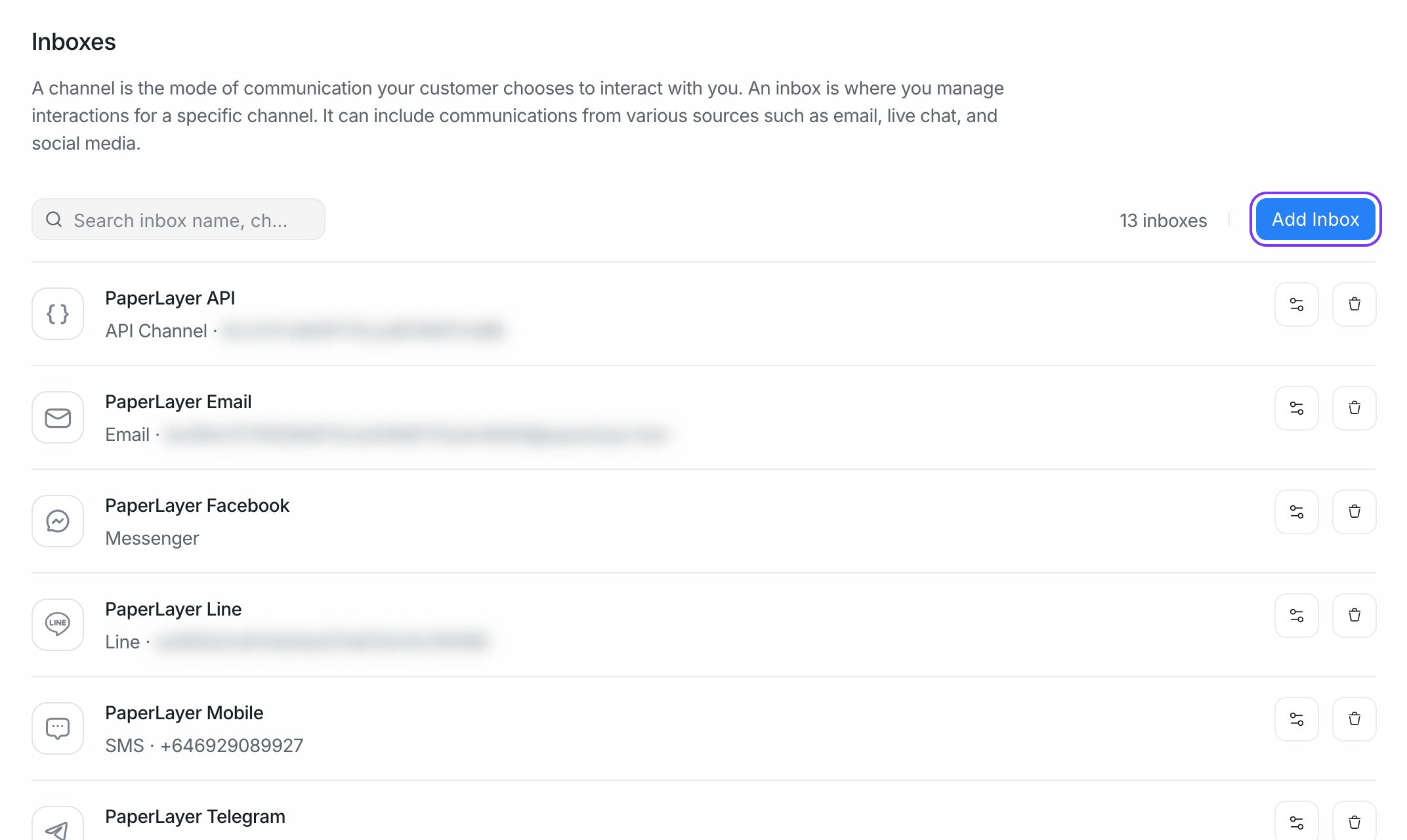
- Under Choose a channel, pick the channel you want to connect.
- Follow the steps for that channel. Most channels ask you to sign in to the other service (for example Facebook) or paste keys from it (for example Twilio).
- On the Agents step, pick who can work in this inbox and click Add agents.
- When you see Your Inbox is ready!, click Take me there to open the inbox, or More settings to configure it.
Who can see an inbox
- Administrators can see every inbox.
- Agents see conversations only in the inboxes they have been added to.
To change who works in an inbox, open it from Settings → Inboxes and use the Collaborators tab. See Invite your team.
Inbox settings
Open any inbox from Settings → Inboxes to see its tabs. The tabs you see depend on the channel:
| Tab | What you can do |
|---|---|
| Settings | Rename the inbox, change its avatar, set a greeting message and other channel options. For website inboxes, customise the chat widget. |
| Collaborators | Choose the agents for this inbox and turn automatic assignment on or off. |
| Business Hours | Set opening hours and an away message. See Business hours and away messages. |
| CSAT | Ask customers to rate conversations after they are resolved. See CSAT surveys. |
| Pre Chat Form | Website only. Ask visitors for details before they start a chat. See Pre-chat forms. |
| Configuration | Channel-specific technical settings, such as allowed domains for the website widget or webhook details. |
| Bot Configuration | Connect an agent bot to the inbox. |
| Account Health | WhatsApp and Twilio inboxes. Check the status of the connected account. |
Reply windows on messaging apps
Some messaging apps limit when businesses can send messages. For example, on WhatsApp you can reply freely only within 24 hours of the customer's last message. After that, EngageOne shows a message such as "You cannot reply due to 24 hour message window restriction", and you need to send an approved message template to restart the conversation.
Each channel guide explains its own rules.
Delete an inbox
- Go to Settings → Inboxes.
- Click Delete next to the inbox.
- Type the inbox name to confirm.
Important: Deleting an inbox also deletes all of its conversations and messages. This can't be undone. If you only want to stop using a channel for a while, remove the agents from the inbox instead.