
Labels
Create labels in EngageOne to tag conversations and contacts, filter your inbox, trigger automations and see label reports.
On this page
Labels are short tags you put on conversations and contacts, such as billing, refund or vip. They help your team sort work, find chats fast and report on topics.
Create a label
- Go to Settings → Labels → Add label.
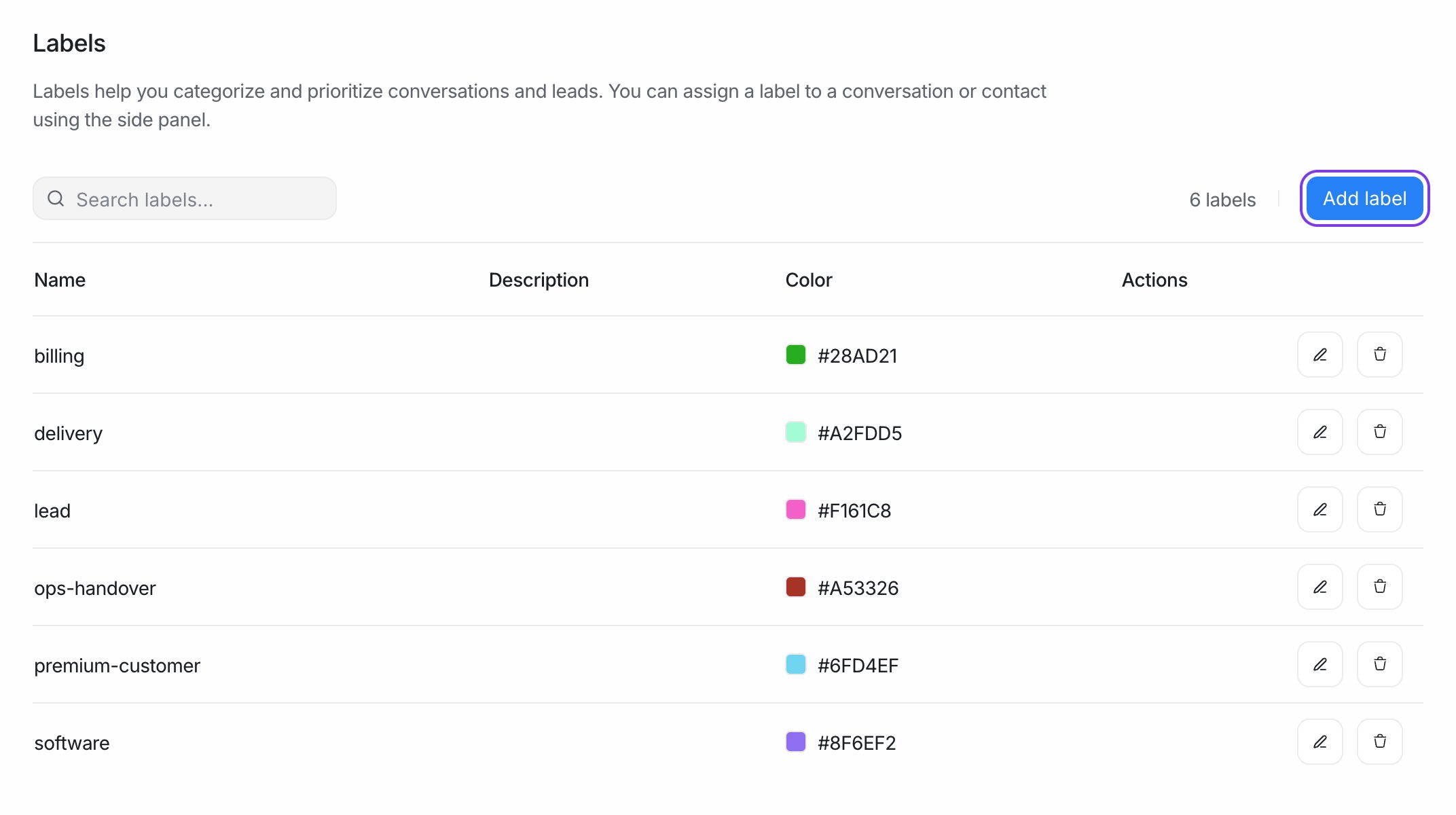
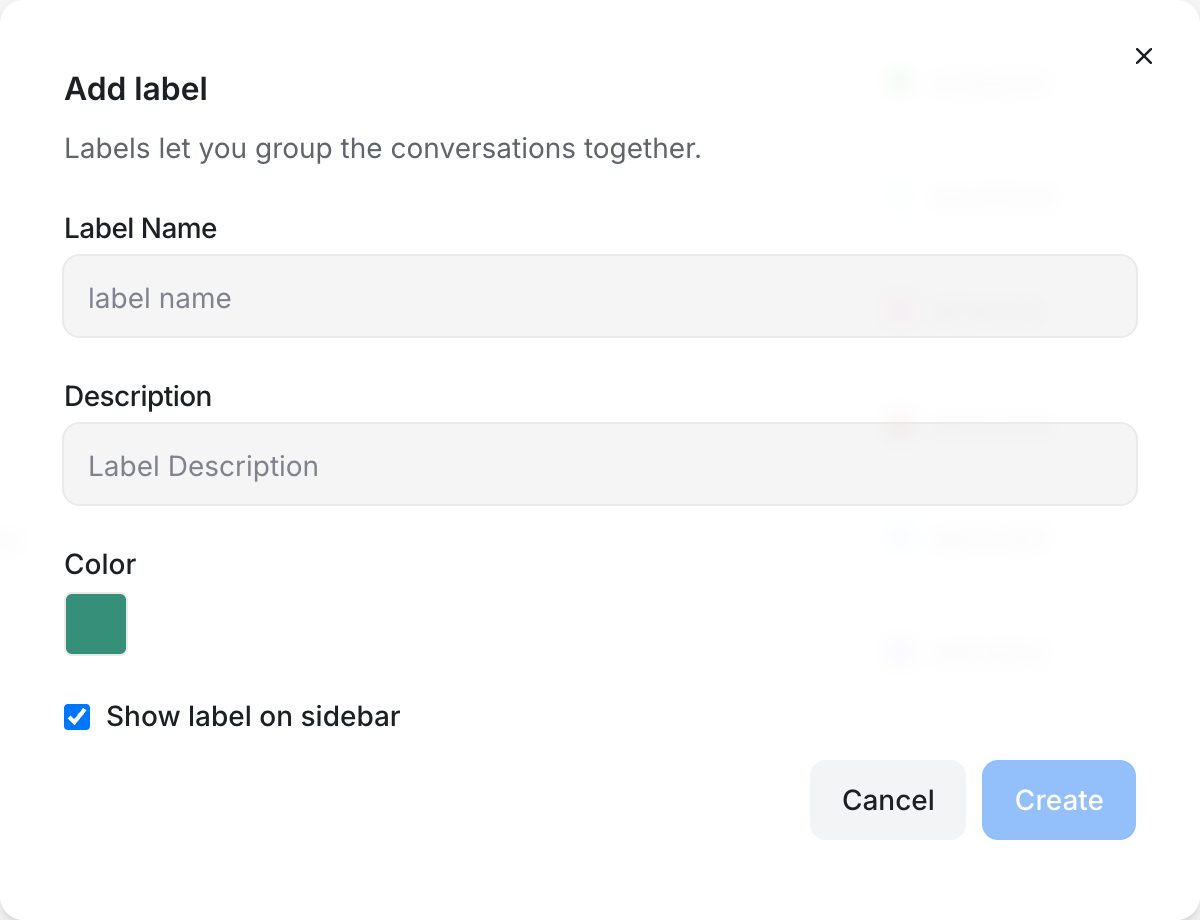
- Fill in the form:
| Field | What to enter |
|---|---|
| Label Name | A short name, such as refund-request. |
| Description | What the label is for, so teammates use it the same way. |
| Color | A colour that makes the label easy to spot in lists. |
| Show label on sidebar | Tick to add a shortcut for this label in the left sidebar. |
- Click Create.
Naming rules
- Names are saved in lowercase.
- Use letters, numbers, hyphens (
-) and underscores (_). Spaces are not allowed. - Each name must be unique in your account.
Tip: Agree on a short list of labels with your team. A few clear labels are more useful than many similar ones.
Edit or delete a label
- Go to Settings → Labels.
- Find the label in the list. Use the search box if you have many.
- Click the edit icon to change it, or the delete icon to remove it.
Important: Deleting a label removes it from the list of labels you can choose. Check your automations, macros and saved folders first, as they may use it.
Add labels to a conversation
- Open the conversation.
- In the right-hand details panel, open Conversation Labels.
- Click to add a label, then choose one or more labels from the list.
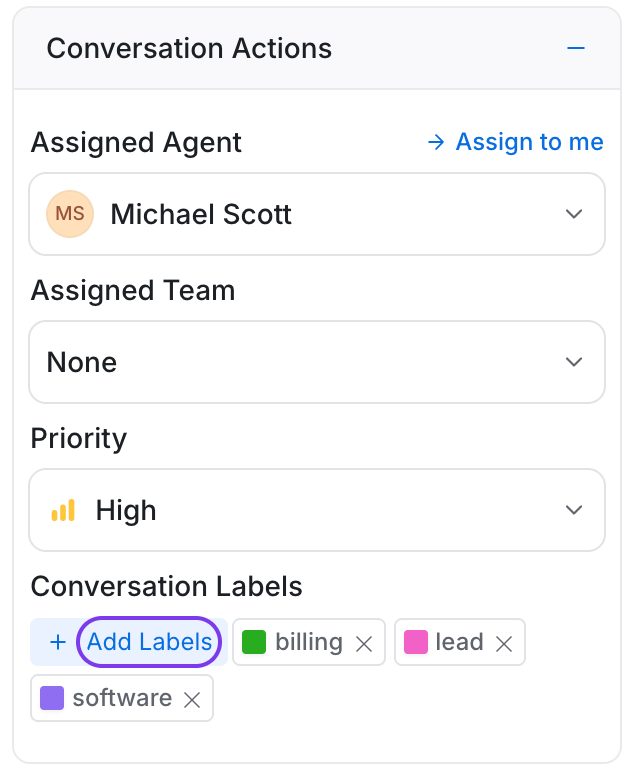
To remove a label, click the small cross on it.
Label many conversations at once
- In the conversation list, select the conversations you want.
- In the bulk actions bar, choose Assign labels.
- Pick the labels and confirm.
You can use Remove labels in the same way.
Add labels to a contact
Contact labels describe the person, not one conversation, for example wholesale or trial-user.
- Go to Contacts and open a contact.
- Add labels in the contact's details.
Find conversations and contacts by label
- Sidebar: Labels with Show label on sidebar turned on appear under Conversations. Click one to see every conversation with that label. Under Contacts → Tagged with, you see contacts with that label.
- Filters: In the conversation list, add a filter on Labels. See Conversation filters and folders.
Where else labels are used
| Feature | How it uses labels |
|---|---|
| Automations | Add or remove labels automatically, or use labels as a condition. |
| Macros | Add or remove labels with one click. |
| CSAT surveys | Send surveys only when a conversation has (or does not have) certain labels. |
| Reports | Reports → Labels shows conversation volume and response times per label. |
| Website widget | Your website code can add a label to the visitor's conversation. |