
Automations
Build EngageOne automation rules that react to events, check conditions and run actions such as assigning, labelling, replying or resolving.
On this page
Automation rules do routine work for you. Each rule waits for an event, checks your conditions, and runs actions when the conditions match.
How a rule is built
| Part | Question it answers | Example |
|---|---|---|
| Event | When should EngageOne check this rule? | A conversation is created |
| Conditions | Which conversations does it apply to? | Inbox is equal to "WhatsApp Sales" |
| Actions | What should happen? | Assign a team: Sales |
Create an automation
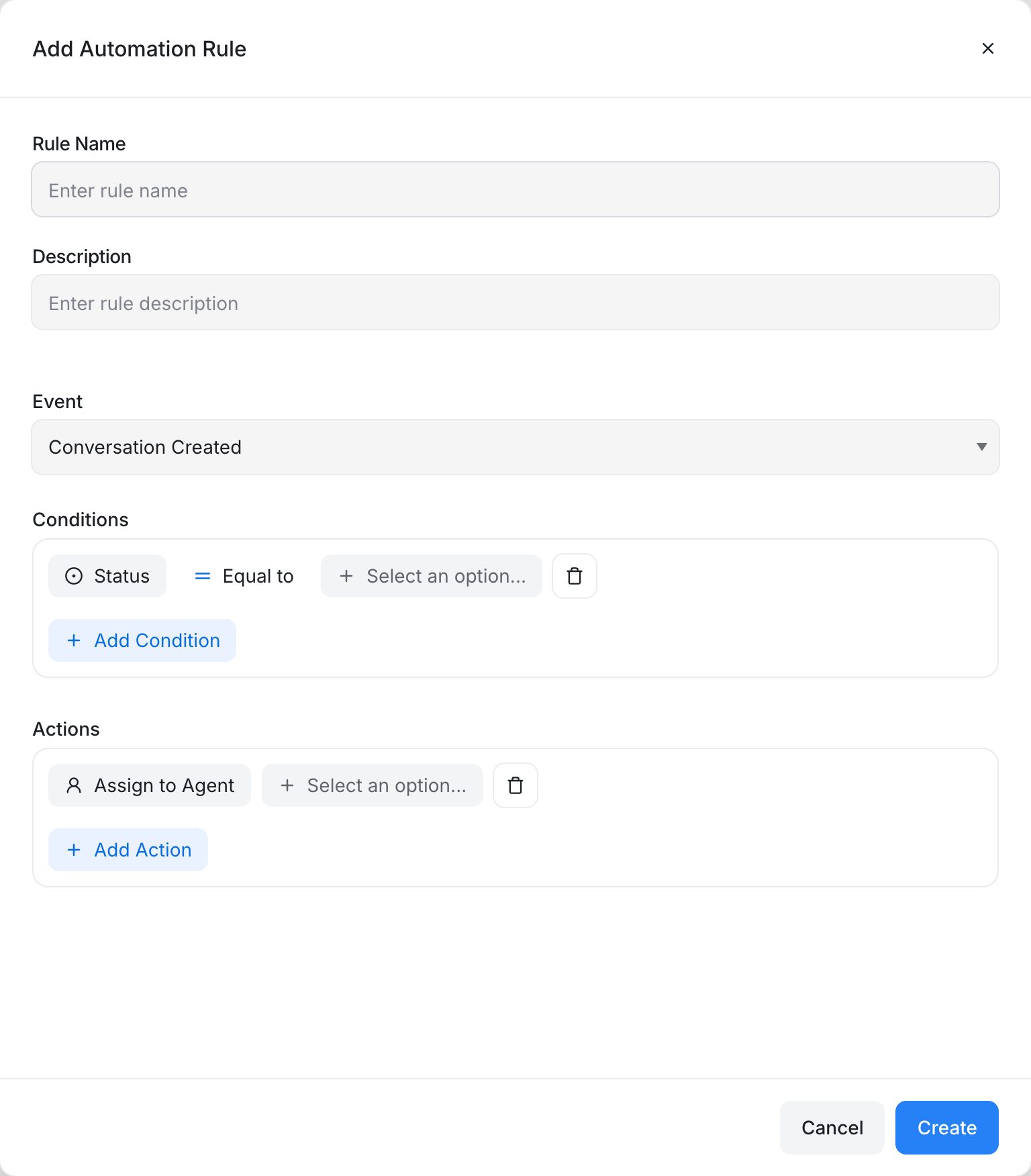
- Go to Settings → Automation → Create Automation.
- Enter a Rule Name and a Description.
- Choose an Event.
- Under Conditions, pick an attribute, an operator and a value. Click Add Condition to add more, and choose AND or OR between them.
- Under Actions, pick an action and fill in its details. Click Add Action to add more.
- Click Create.
New rules are active straight away. A rule needs at least one condition and one action.
Note: Changing the event resets the conditions and actions you have added, because each event supports different conditions.
Events
| Event | When it runs |
|---|---|
| Conversation Created | A new conversation starts. |
| Conversation Updated | A conversation changes, for example its status, assignee or labels. |
| Conversation Opened | A conversation is opened or reopened. |
| Conversation Resolved | A conversation is resolved. |
| Message Created | A new message is added to a conversation. |
Conditions
The conditions you can choose depend on the event.
| Condition | Created | Updated | Opened | Resolved | Message Created |
|---|---|---|---|---|---|
| Status | ✓ | ✓ | ✓ | ||
| Inbox | ✓ | ✓ | ✓ | ✓ | ✓ |
| Assignee | ✓ | ✓ | ✓ | ✓ | |
| Team | ✓ | ✓ | ✓ | ✓ | |
| Priority | ✓ | ✓ | ✓ | ✓ | ✓ |
| Labels | ✓ | ✓ | ✓ | ✓ | |
| ✓ | ✓ | ✓ | ✓ | ✓ | |
| Phone Number | ✓ | ✓ | ✓ | ✓ | ✓ |
| Company | ✓ | ✓ | ✓ | ✓ | ✓ |
| Conversation Language | ✓ | ✓ | ✓ | ✓ | ✓ |
| Browser Language | ✓ | ✓ | ✓ | ✓ | |
| Country | ✓ | ✓ | ✓ | ✓ | |
| Referrer Link | ✓ | ✓ | ✓ | ✓ | |
| Email Subject | ✓ | ✓ | ✓ | ✓ | |
| Message Type (incoming or outgoing) | ✓ | ||||
| Message Content | ✓ | ||||
| Private Note | ✓ |
You can also use any Contact Custom Attributes and Conversation Custom Attributes as conditions.
Operators include Equal to, Not equal to, Contains, Does not contain, Is present and Is not present, depending on the condition.
Actions
| Action | What it does |
|---|---|
| Assign to Agent | Assigns an agent. You can also pick Last Responding Agent. |
| Assign a Team | Assigns a team. |
| Remove Assigned Agent | Unassigns the agent. |
| Remove Assigned Team | Unassigns the team. |
| Add a Label | Adds one or more labels. |
| Remove a Label | Removes one or more labels. |
| Send a Message | Sends a reply to the customer. |
| Add a Private Note | Adds an internal note. |
| Send Attachment | Sends a file you upload to the rule. |
| Send an Email to Team | Emails the members of the teams you choose, with your message. |
| Send an Email Transcript | Emails the conversation to an address. Tick Use contact's email to send it to the customer. |
| Change Priority | Sets priority to None, Low, Medium, High or Urgent. |
| Mute Conversation | Mutes the conversation. |
| Snooze Conversation | Snoozes the conversation. |
| Open conversation | Reopens the conversation. |
| Mark conversation as pending | Sets the status to pending. |
| Resolve Conversation | Resolves the conversation. |
| Send Webhook Event | Sends the conversation data to a URL you enter. |
| Add SLA | Applies an SLA policy, if SLAs are available on your account. |
Tip: Pick actions that make sense for the event. For example, resolving a conversation from the Conversation Resolved event has no effect.
Run a rule after a wait
If this option is turned on for your account, you can choose When should this rule run?:
- Run instantly: runs the moment the event happens and the conditions match.
- Run after a wait: waits for a set time, then runs only if things are still the same.
With Run after a wait, you choose a Wait condition:
| Wait condition | The clock starts when… | The actions run if… |
|---|---|---|
| Conversation stays in a status | The conversation moves into the status you pick. | It is still in that status when the time is up. |
| Customer hasn't replied | A teammate replies. | The customer has not written back when the time is up. |
| No teammate has replied | The customer sends a message. | No teammate has replied when the time is up. |
The wait can be from 10 minutes to 30 days. Only new activity starts the clock, so conversations already waiting are picked up the next time something happens on them.
The automation list has two tabs, Runs instantly and Runs after a wait, so you can find each kind of rule.
Example rules
Route WhatsApp sales chats
- Event: Conversation Created
- Condition: Inbox equal to "WhatsApp Sales"
- Actions: Assign a Team → Sales, Add a Label →
sales
Flag urgent messages
- Event: Message Created
- Conditions: Message Type equal to Incoming Message AND Message Content contains "urgent"
- Action: Change Priority → Urgent
Close quiet chats
- Run after a wait: Customer hasn't replied for 3 days
- Actions: Send a Message → "We'll close this chat for now. Reply any time to reopen it.", Resolve Conversation
Turn a rule on or off, copy or delete it
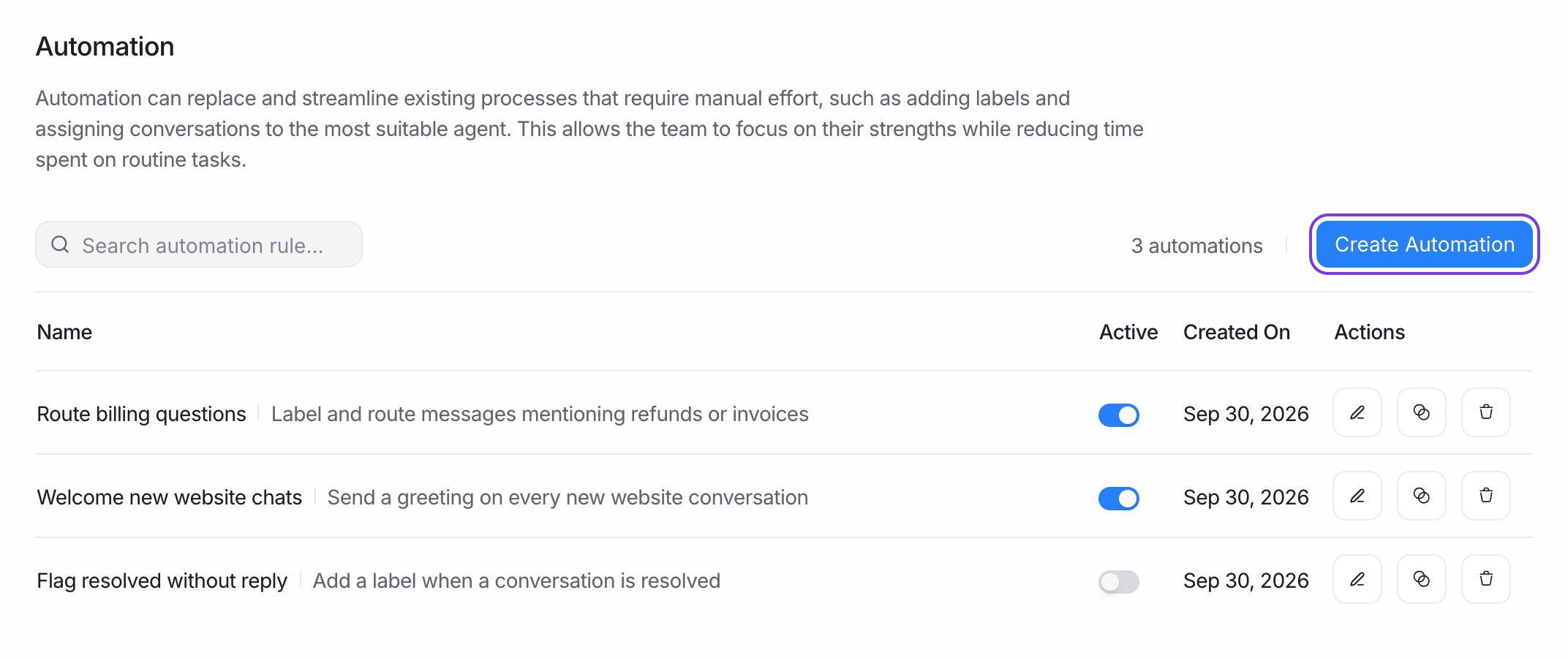
Go to Settings → Automation. For each rule you can:
- Use the Active toggle to turn it on or off.
- Click the clone icon to make a copy you can change.
- Edit or delete it.
Tip: Test new rules on a single inbox first by adding an Inbox condition. Widen the rule once it works as expected.