
CSAT reports
Read customer satisfaction results in EngageOne: satisfaction score, response rate, rating distribution and individual feedback, with filters and CSV export.
On this page
The CSAT report shows how satisfied customers are with your support, based on the surveys they answer after a conversation.
Before you start
CSAT results only appear after you turn on CSAT surveys for your inboxes and customers start answering them. See CSAT surveys.
Open the CSAT report
- Go to Reports → CSAT.
- Choose a date range at the top of the page. The report shows the last 7 days by default.
- Optionally, click Add filter to narrow the results.
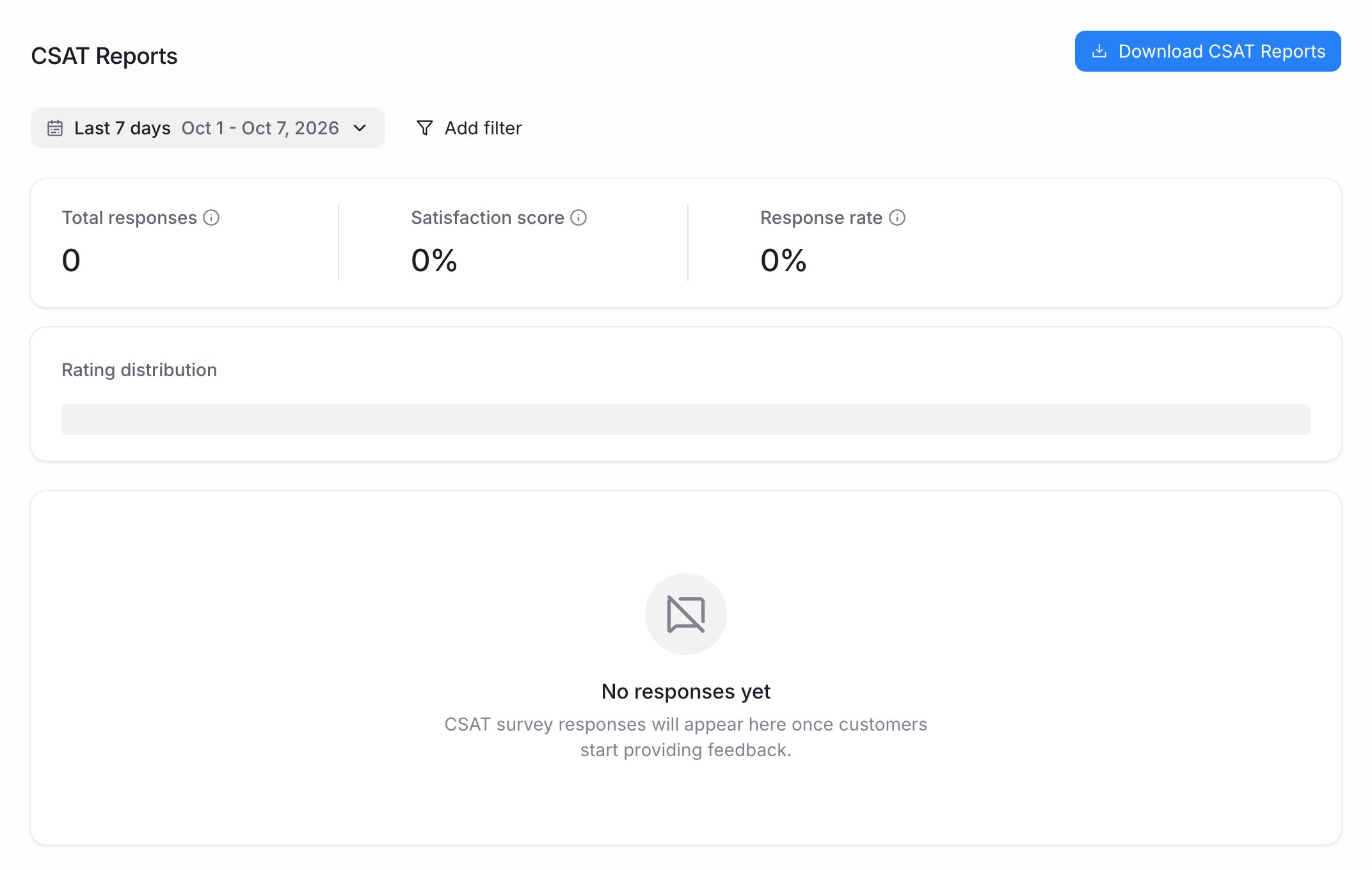
Summary metrics
| Metric | Meaning | How it's calculated |
|---|---|---|
| Total responses | Number of survey answers received. | Count of responses. |
| Satisfaction score | Share of positive ratings. | Ratings of 4 or 5 ÷ total responses × 100. |
| Response rate | Share of surveys customers answered. | Responses ÷ surveys sent × 100. |
The Rating distribution shows how many customers chose each rating, from 1 (lowest) to 5 (highest).
Tip: A low response rate can make the satisfaction score less reliable. If few customers answer, review when and how your survey is sent.
Filters
Click Add filter and choose one or more of:
| Filter | Use it to |
|---|---|
| Agent | See ratings for conversations handled by specific agents. |
| Inbox | Compare channels, for example live chat against WhatsApp. |
| Team | See ratings for a team. This filter appears only if you use teams. |
| Rating | Show only certain ratings, for example all 1 and 2 ratings to follow up on unhappy customers. |
Click Clear all to remove every filter.
Individual responses
Below the summary, a table lists each response with:
| Column | Meaning |
|---|---|
| Contact | The customer who answered. |
| Rating | The rating they gave. |
| Feedback comment | Any comment they added. Shows "No feedback provided" if they left none. |
| Handled by | The agent assigned to the conversation. |
Click the conversation number next to the contact to open the conversation and see what happened.
Review notes
If review notes are available on your plan, you can expand a row and add Review notes, for example what went wrong and what you did about it. Click Save. Other administrators can see who last updated the note.
Download CSAT data
- Set the date range and filters you need.
- Click Download CSAT Reports at the top right.
The file downloads in CSV format.
Ways to use CSAT results
- Filter by Rating each week and follow up with unhappy customers.
- Compare inboxes to find channels where customers are less happy.
- Use positive feedback to recognise agents in team meetings.
- Check the Satisfied customers tile on the Overview page for a quick trend.