
WhatsApp calling
Let customers call your WhatsApp Business number and call them back from EngageOne once they agree to receive calls.
On this page
WhatsApp calling lets customers call your business number from the WhatsApp app, and lets your agents call customers back, all in the browser.
How it works
Calls connect directly between the agent's browser and Meta. You don't need any extra calling provider or credentials.
- Incoming: a customer taps the call button in your WhatsApp chat. Agents in the inbox see an Incoming call alert and select Join call to answer.
- Outgoing: an agent starts a call from the conversation. WhatsApp only allows this after the customer has agreed to receive calls from you.
- Every call is logged in the customer's WhatsApp conversation.
Before you start
- Calling must be enabled for your EngageOne account.
- You need a WhatsApp Cloud inbox. Twilio WhatsApp inboxes can't take WhatsApp calls. See WhatsApp (Cloud API).
- Your number must be enrolled in Meta's WhatsApp Business Calling API.
- Each agent must allow microphone access for EngageOne in their browser.
Turn on calling for an existing WhatsApp inbox
- Go to Settings → Inboxes and open your WhatsApp Cloud inbox.
- Open the Calls tab.
- Turn on Enable WhatsApp Calling. EngageOne turns calling on at Meta for this number.
- Optional: turn off Allow incoming calls if you only want to place calls.
- Optional: write a Call permission request message. Customers see it when you ask for permission to call. Leave it blank to use the default.
- Choose whether to Record calls and Transcribe recordings.
- Select Update.
Create a new inbox with calling
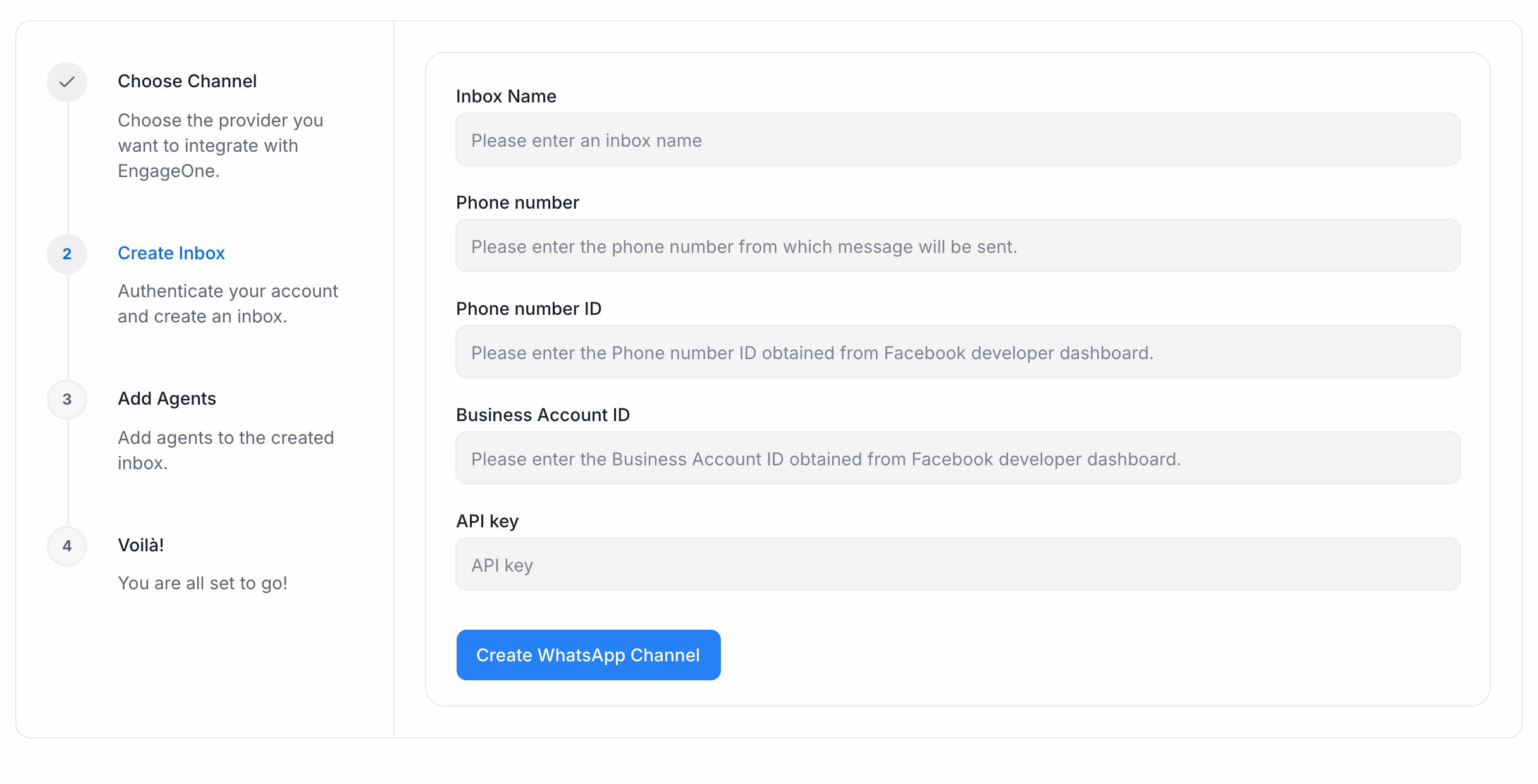
- Go to Settings → Inboxes → Add Inbox → WhatsApp Call.
- Enter the Inbox Name, Phone number, Phone number ID, Business Account ID and API key (your permanent access token from Meta).
- Select Create WhatsApp Channel. EngageOne creates the inbox and turns calling on.
- Pick your agents and select Add agents.
Note: If calling can't be turned on, the inbox is still created and works for messages. The number isn't enrolled in the WhatsApp Business Calling API yet. Ask Meta or your WhatsApp Business Solution Provider to enable it, then turn on calling in the Calls tab.
Calling a customer
Customers must agree before you can call them on WhatsApp.
- Open the customer's WhatsApp conversation.
- Select Start WhatsApp call in the conversation header.
- What happens next depends on the customer's permission:
| Situation | What happens |
|---|---|
| The customer has already agreed to calls | The call starts and rings the customer |
| The customer hasn't agreed yet | EngageOne sends them a call permission request and shows "Sent a call permission request to the contact" |
| A request was sent a few minutes ago | EngageOne doesn't send another one yet and asks you to try again once the customer accepts |
- When the customer accepts the request, select Start WhatsApp call again.
Tip: Agree on the best time to call in the chat first. Customers are more likely to accept a call they expect.
Recordings and transcripts
| Setting | What it does |
|---|---|
| Record calls | The agent's browser records the call and attaches the recording to the conversation |
| Transcribe recordings | Creates a text transcript from the recording. Needs audio transcription enabled for your account |
Whether you get a recording or transcript depends on these settings and on your account. If either is off, the call is still logged without it.
Important: Recording laws differ by country and region. Turn off Record calls where recording isn't allowed, and tell customers when calls are recorded.
Troubleshooting
| Problem | Likely cause | Fix |
|---|---|---|
| Enable WhatsApp Calling fails | The number isn't enrolled in the WhatsApp Business Calling API | Ask Meta or your provider to enable calling, then try again |
| There's no Calls tab | The inbox isn't WhatsApp Cloud, or calling isn't enabled for your account | Use a WhatsApp Cloud inbox, or ask your administrator |
| Agents can't call out | The customer hasn't accepted the permission request | Wait for the customer to accept, then try again |
| Customers can't call in | Allow incoming calls is off | Turn it on in the Calls tab |
| An agent can't hear or speak | The browser blocked the microphone | Allow microphone access for EngageOne and reload |